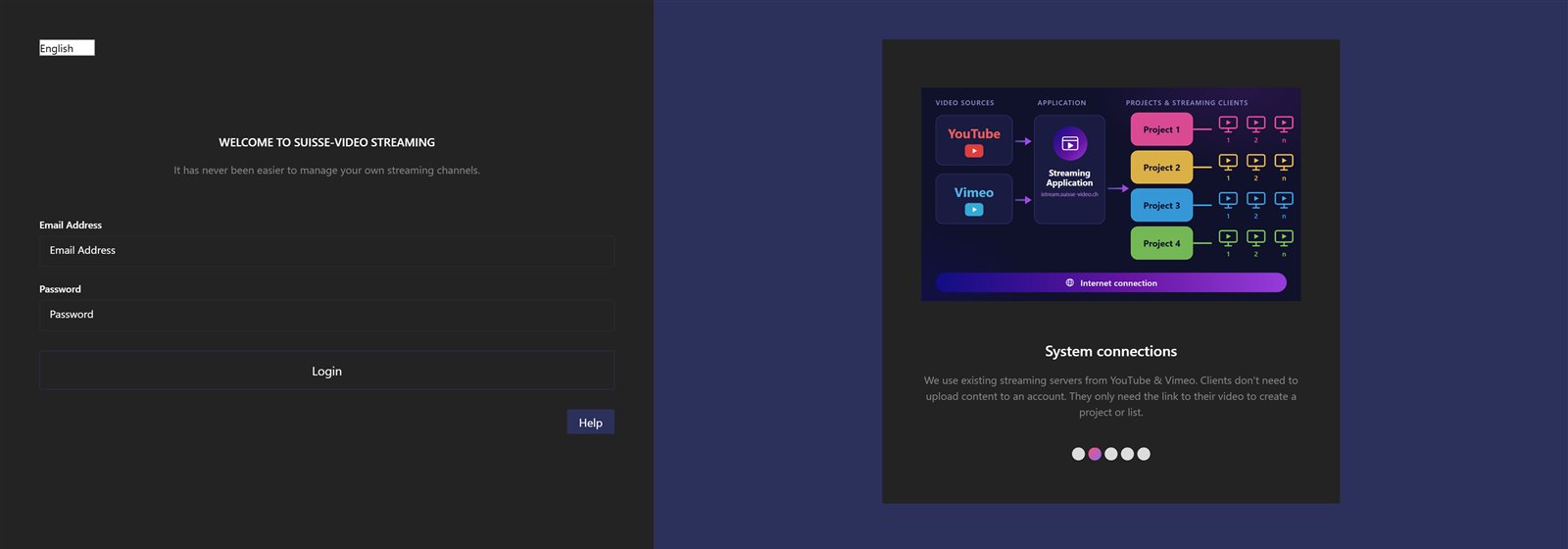
To use the streaming application you need to sign in. If you do not have credentials yet, please contact us: support@suisse-video.ch.
If you have credentials, go to istream.suisse-video.ch and sign in. The language can be chosen on the login page. The application is available in German, English, French and Italian.
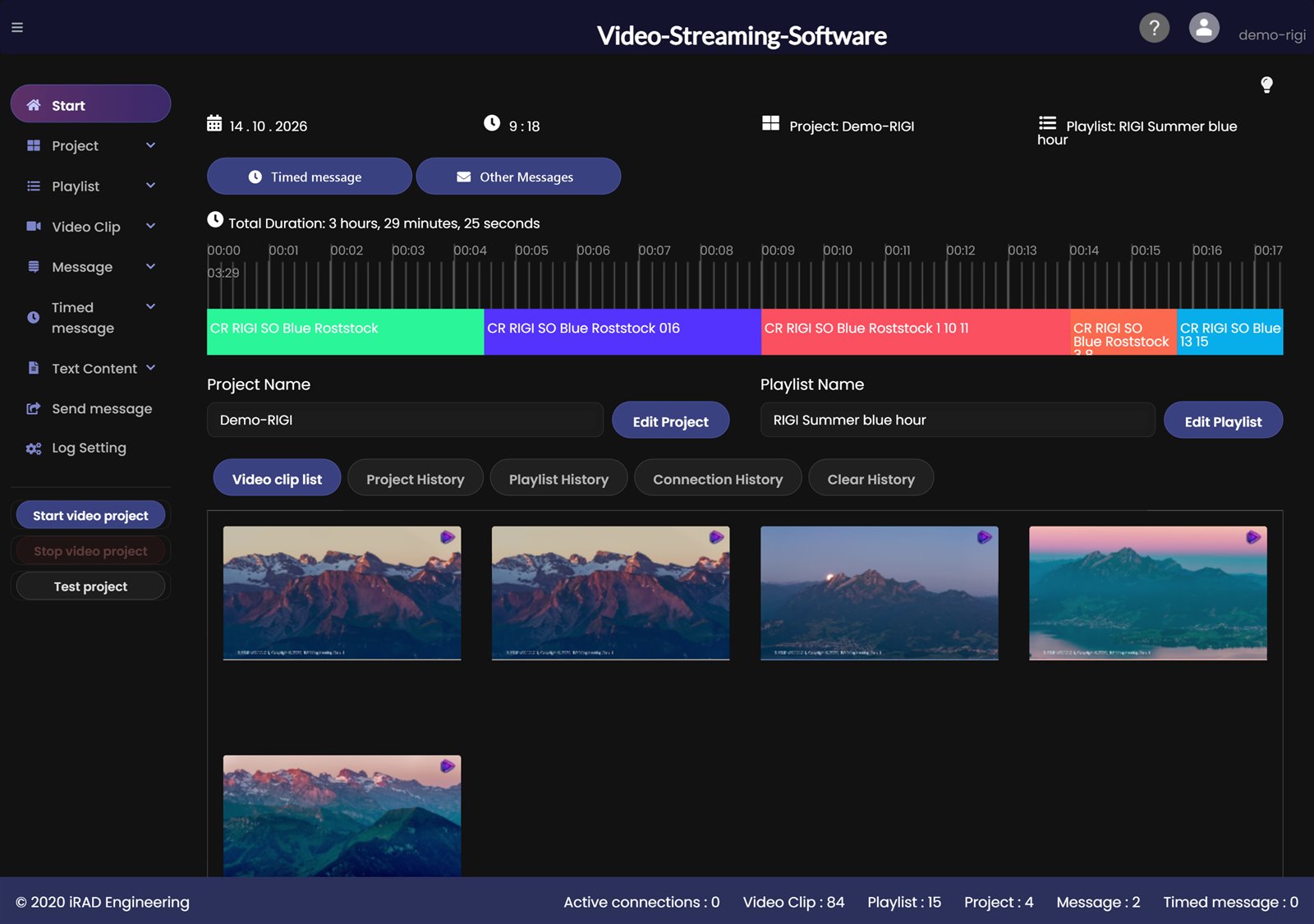
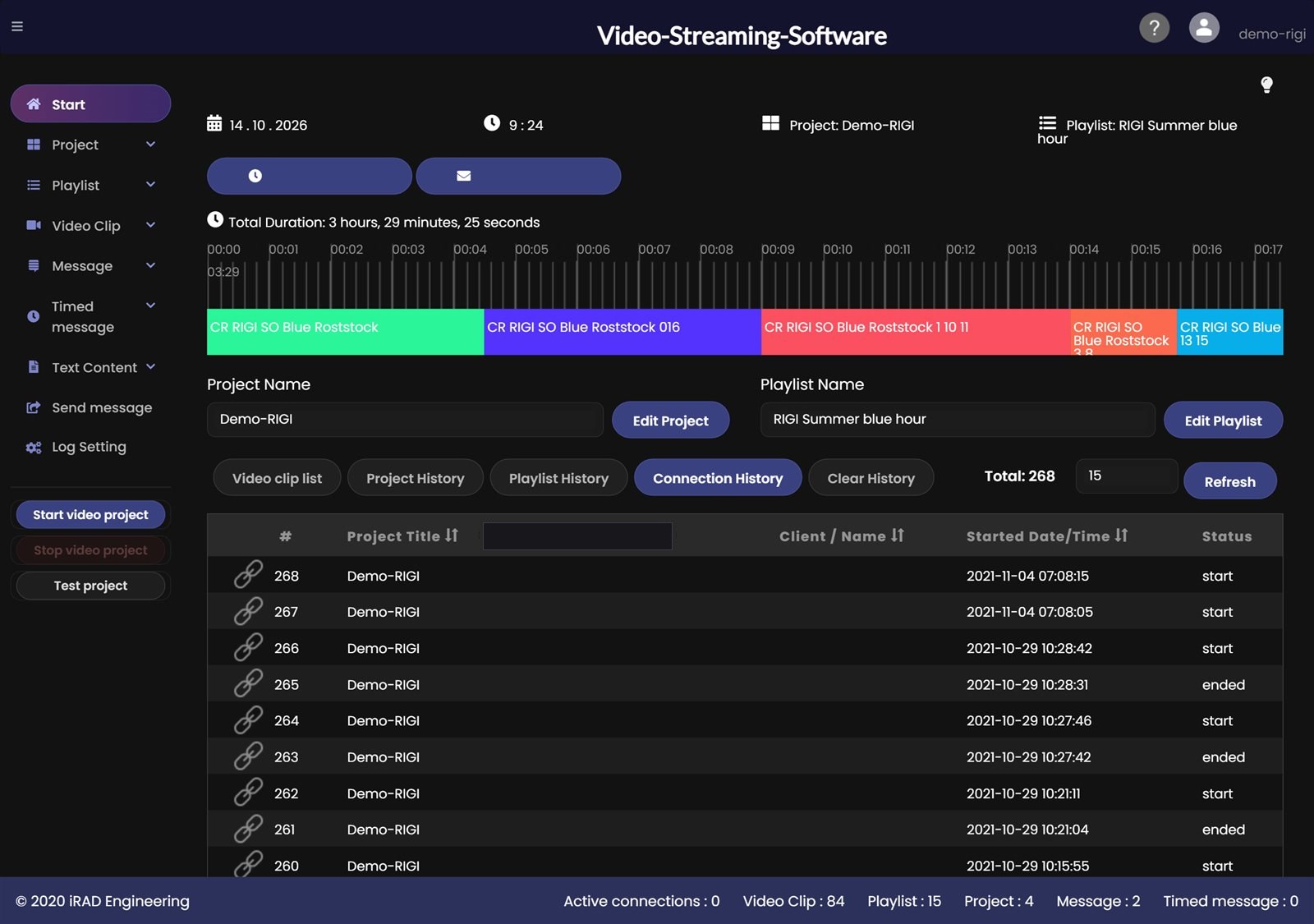
After signing in you see the start screen. From here you reach every function of the application:
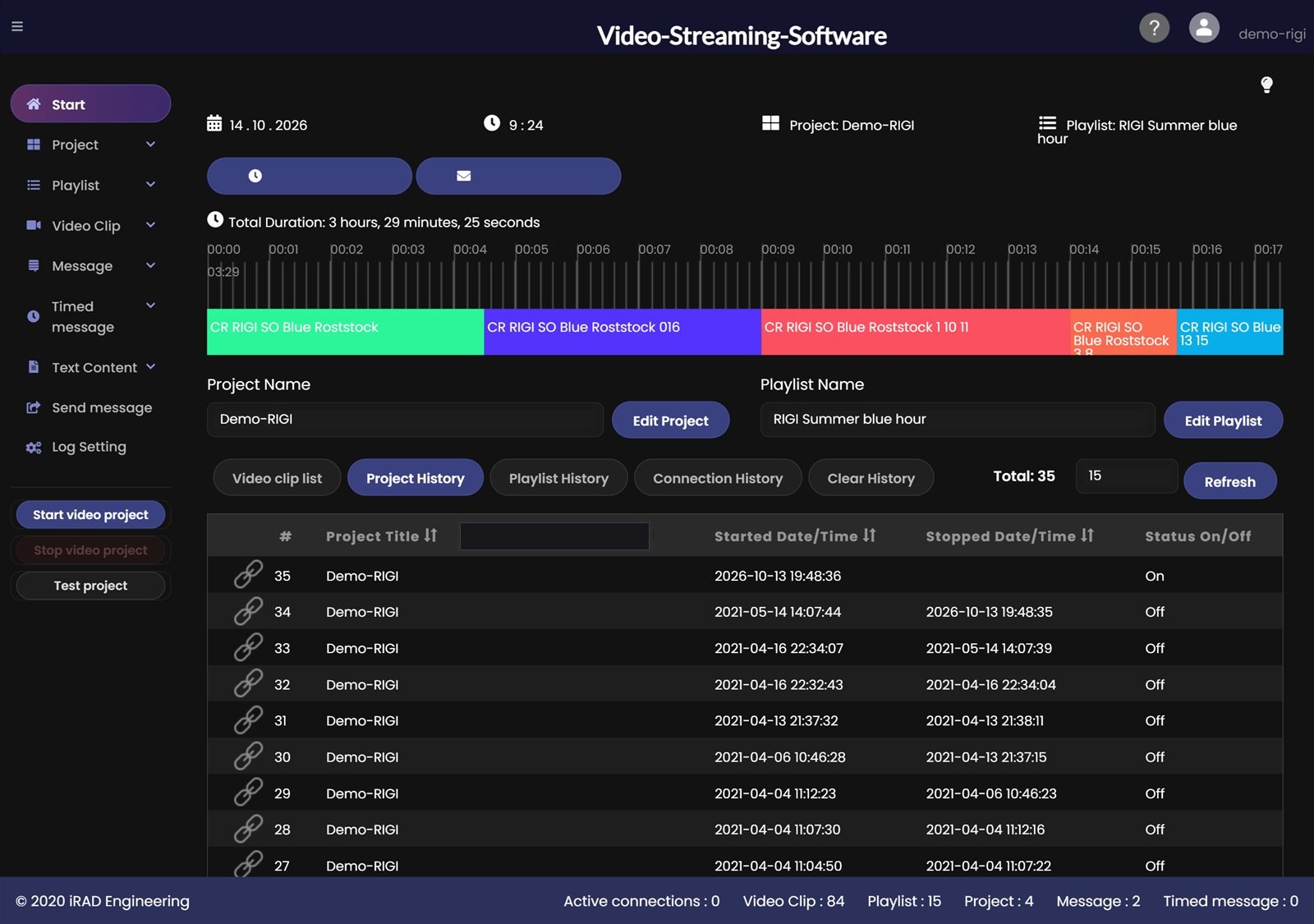
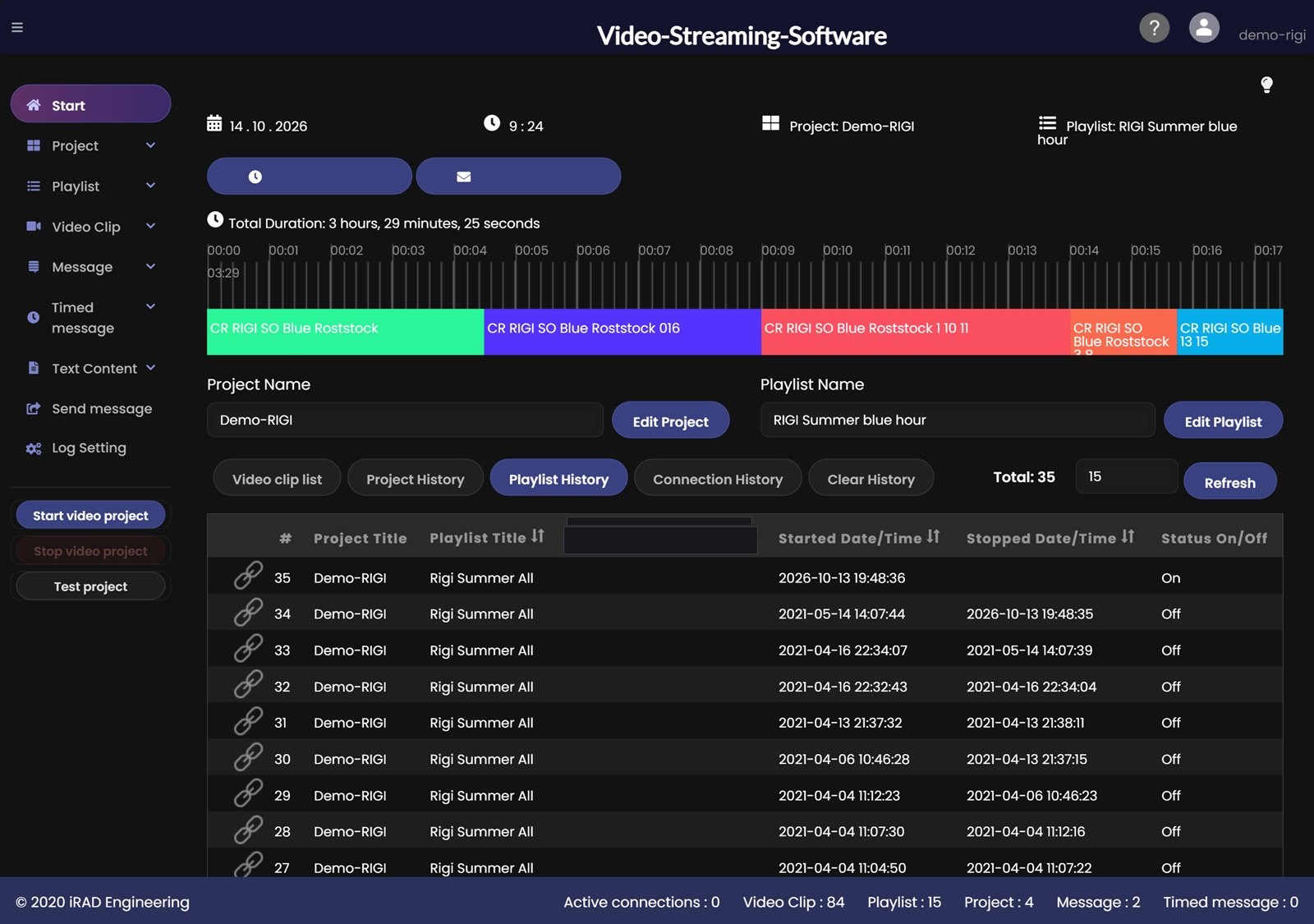
Start – this dashboard with the selected project and playlist, the timeline of the running clips and the history lists.
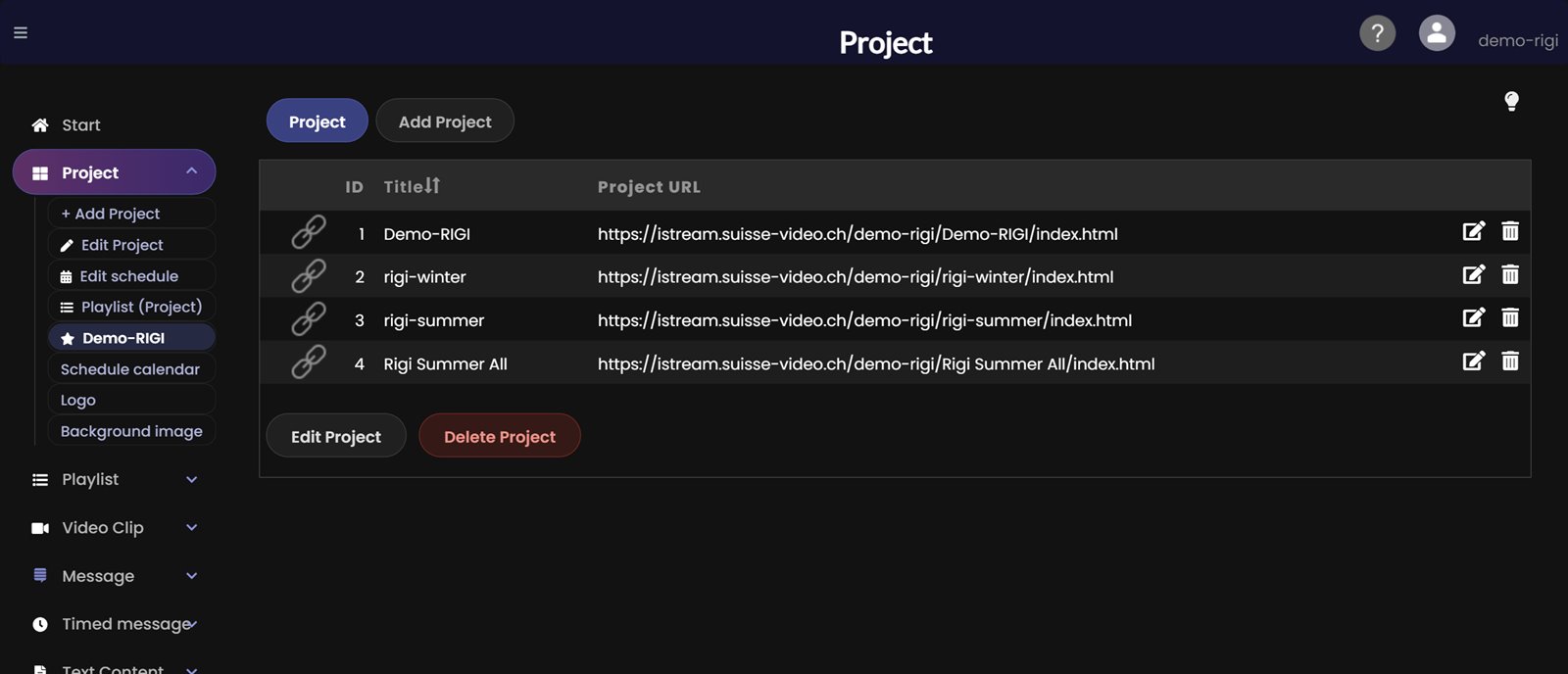
Project – create and manage your projects.
Playlist – create and manage your playlists.
Video Clip – create and manage your video clips.
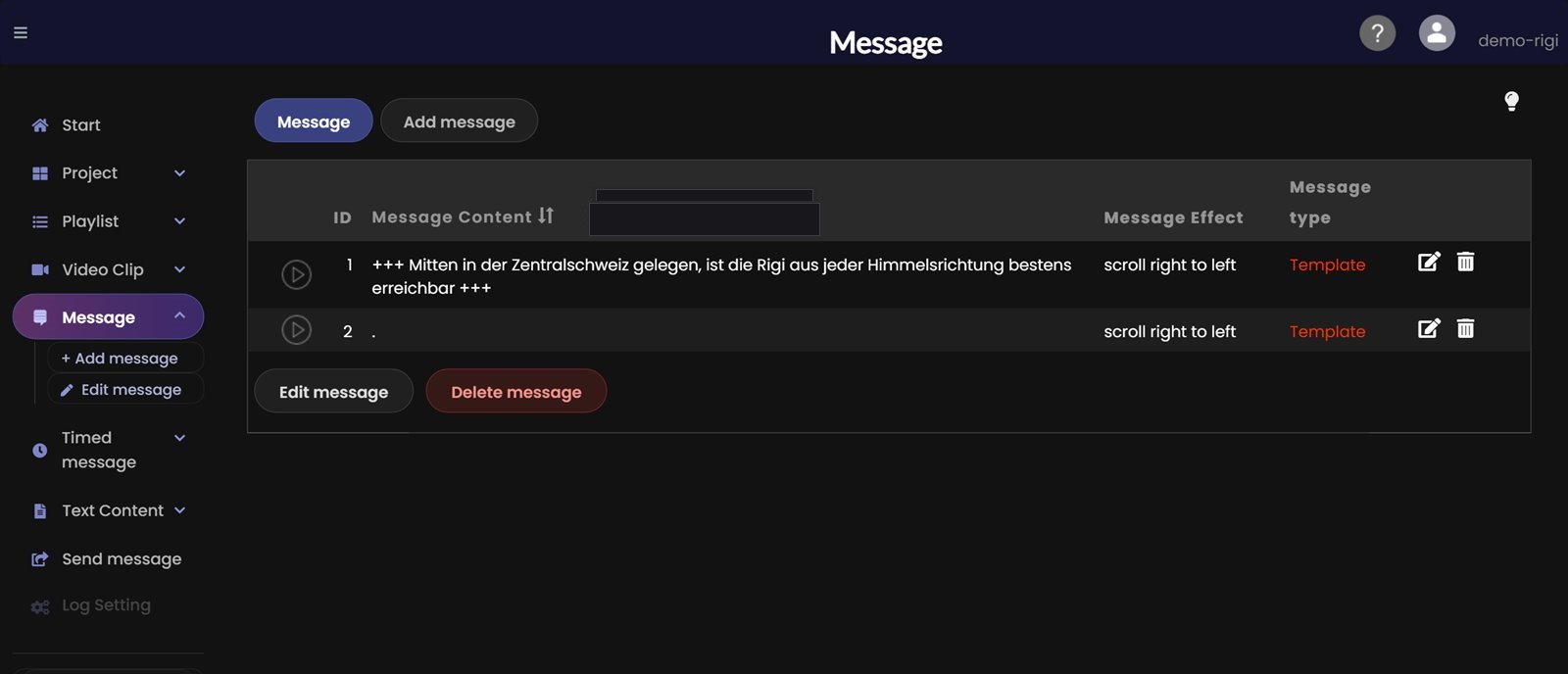
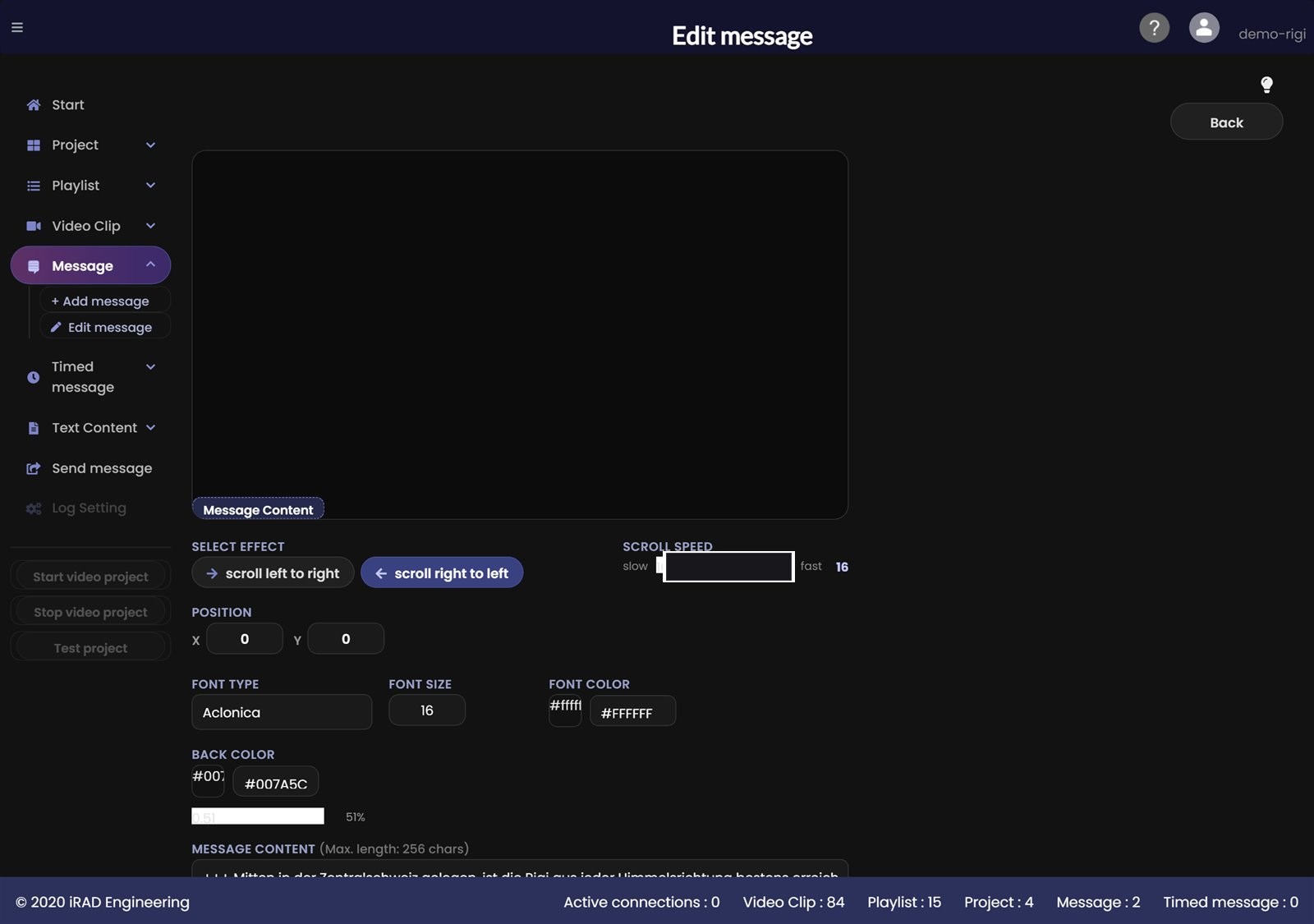
Message – create and manage your messages.
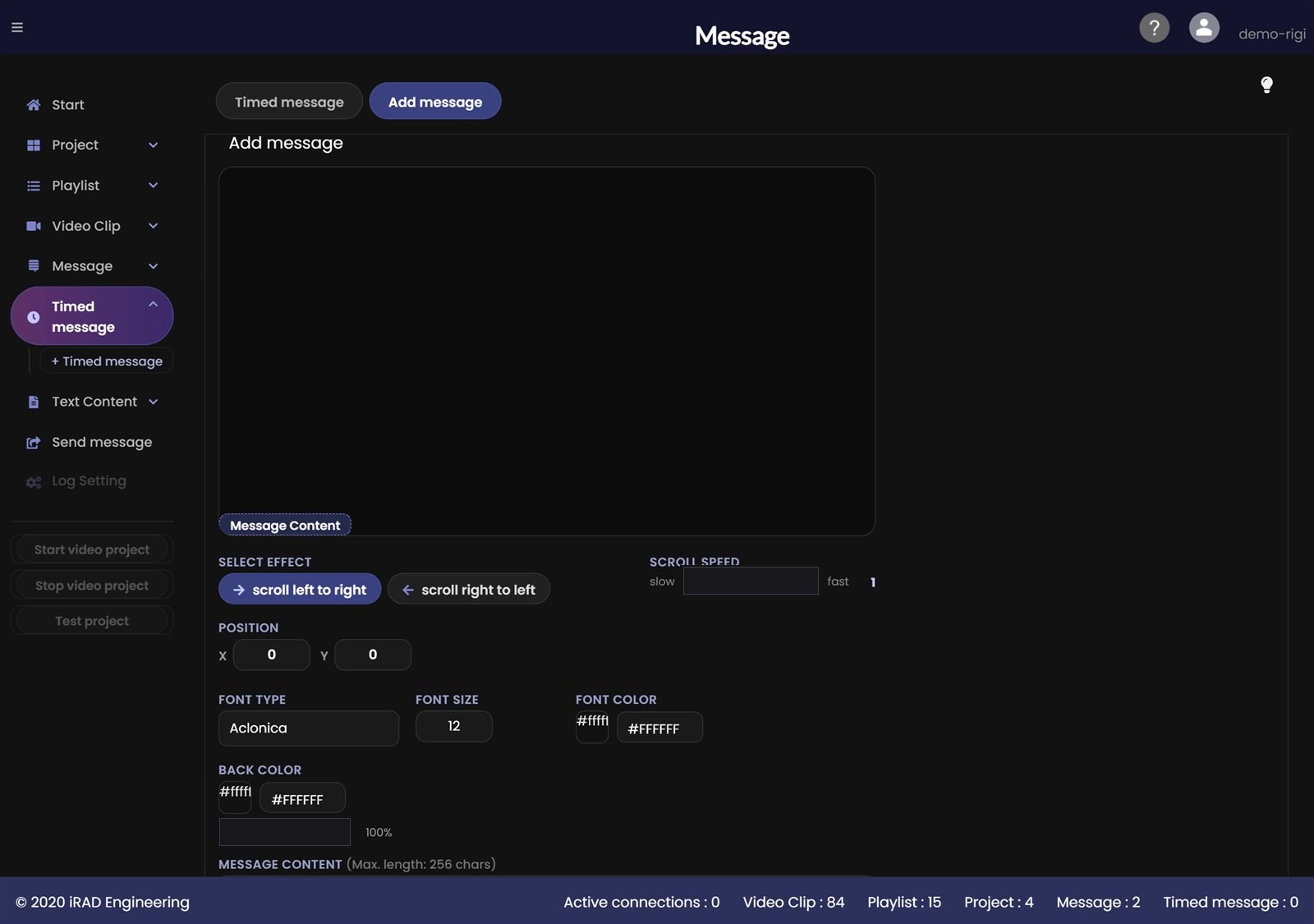
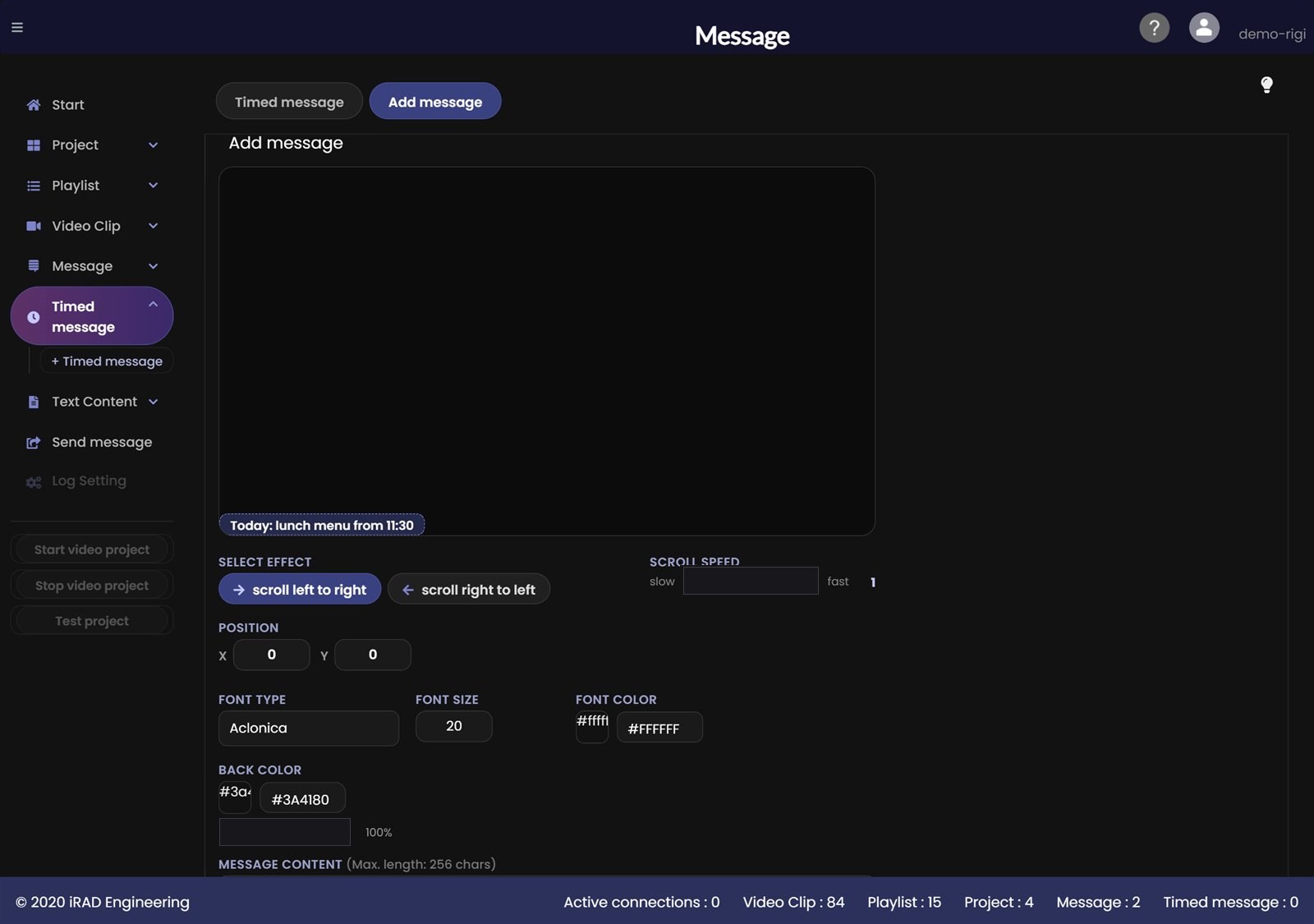
Timed message – create and manage your timed messages.
Text Content – create formatted text such as daily menus that appear instead of the video at set times.
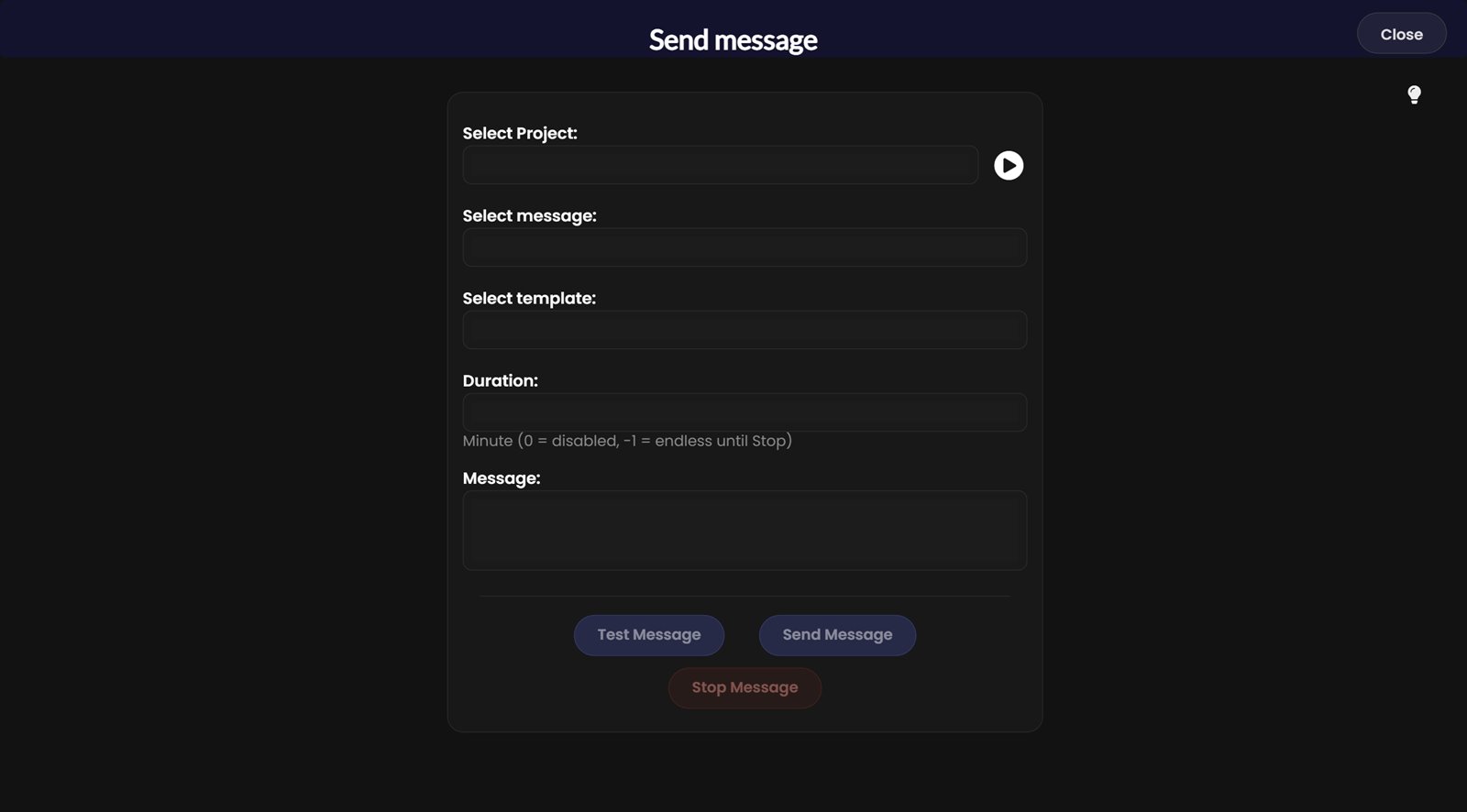
Send message – send a live message to the selected project.
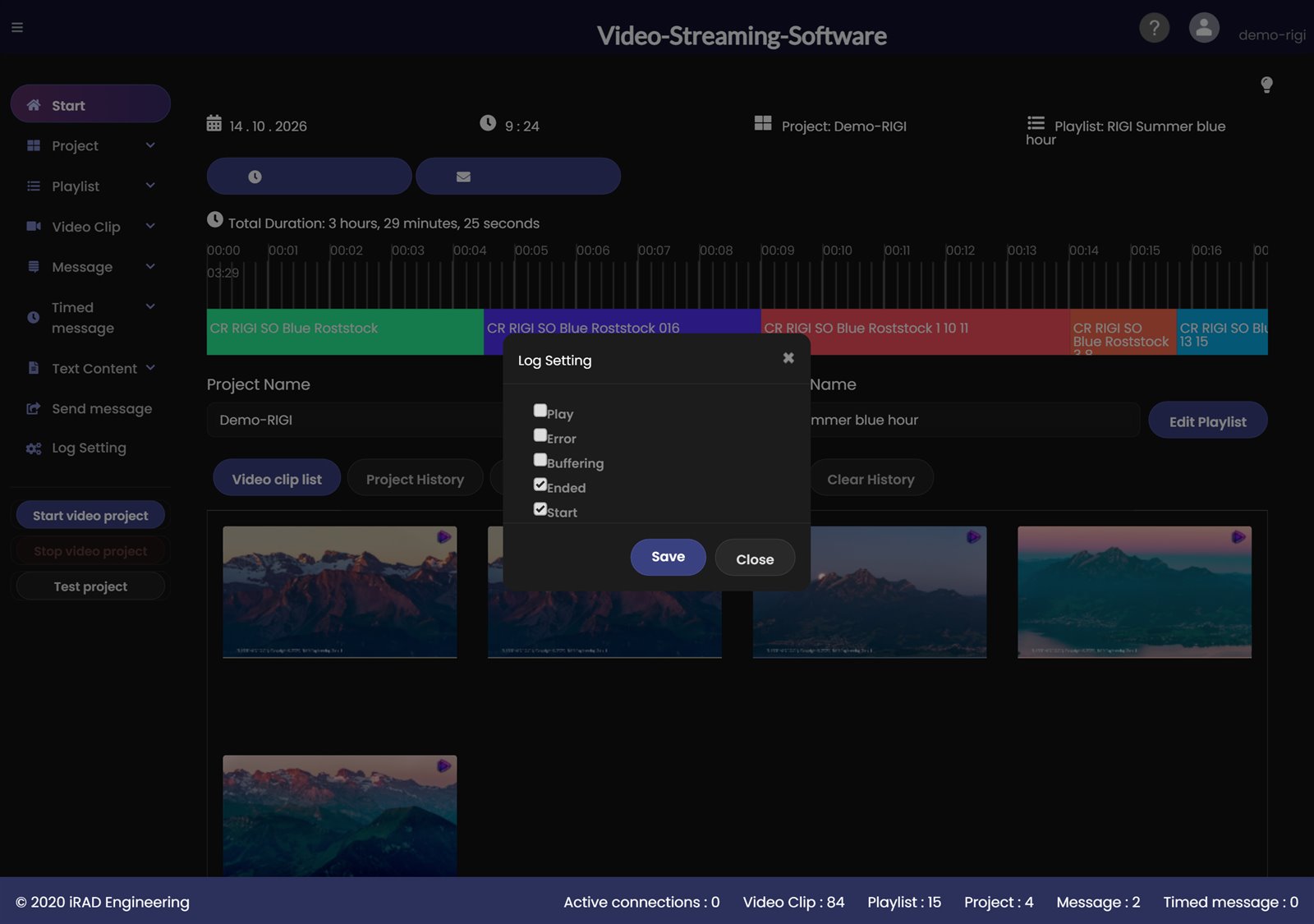
Log Setting – choose which events of the connected players are logged.
Start video project – start the selected project.
Stop video project – stop the selected project.
Test project – start the selected project locally in a separate window to test it.
TipTop right you find ? (this help) and your user name. Click your user name to change your password or to sign out. On many pages the light bulb opens a short video for that page.
At the top of the start screen you find two shortcuts: Timed message opens the timed messages, Other Messages opens the Send message page. Below them you see the name of the selected project and playlist. With Edit project and Edit playlist you open them directly. The timeline shows the clips of the running playlist with their total duration.
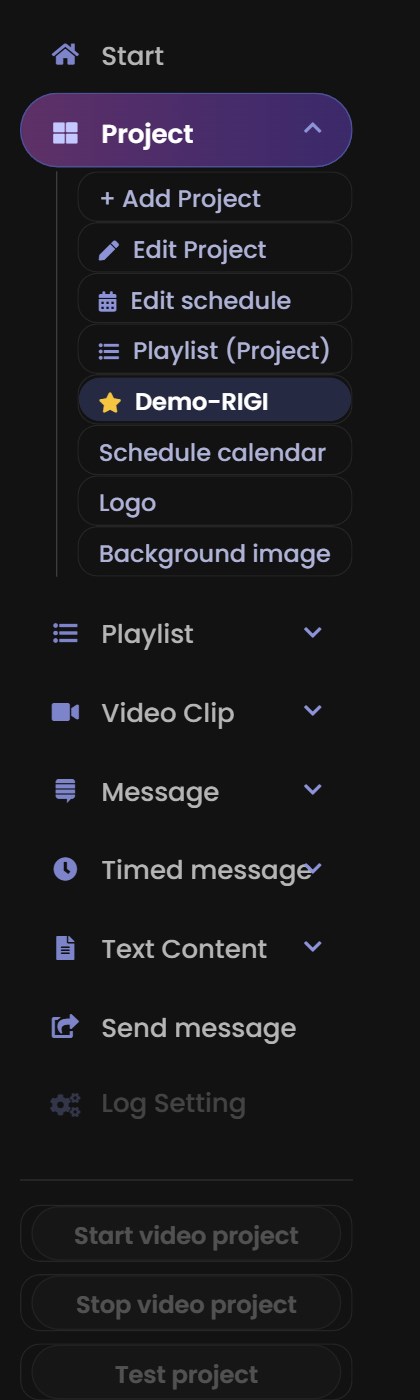
The menu on the left edge leads to all areas. The groups Project, Playlist, Video Clip, Message, Timed message and Text Content have submenus: one click opens the group, another click closes it again. After signing in all groups are closed.
+ … (for example + Project) – creates something new right away.
… edit (for example Edit project) – opens the item you opened last. If you have not opened one yet, the application automatically takes the first one in the list. So you do not have to select anything first.
The project or playlist you opened last is marked with a star in the submenu. Click it to open it.
Under Project you can also go straight to Edit schedule (the timeline of the project), Playlist (project), Event calendar, Logo and Background image.
The page you are on is highlighted. Only one group is marked at a time.
NoteThe buttons Start video project, Stop video project and Test project below the menu are active on the start screen.
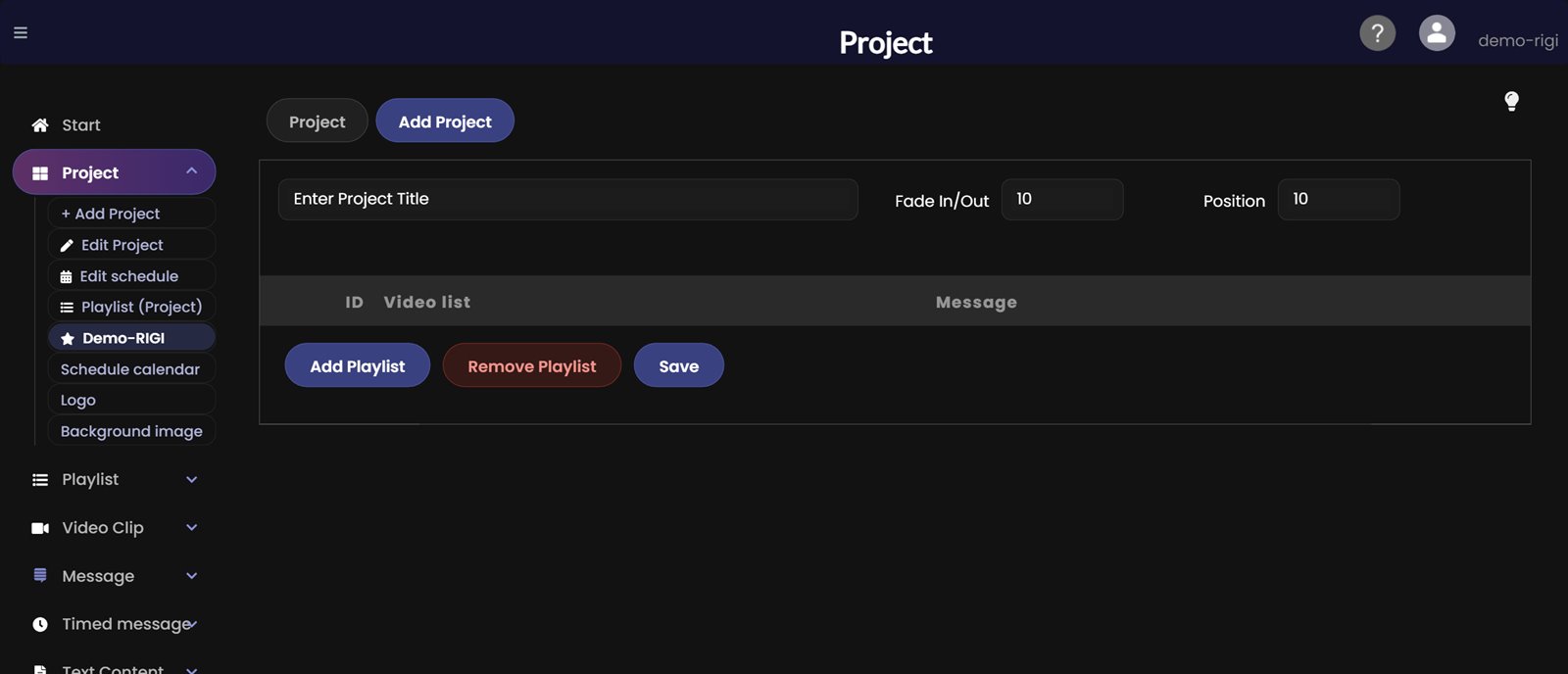
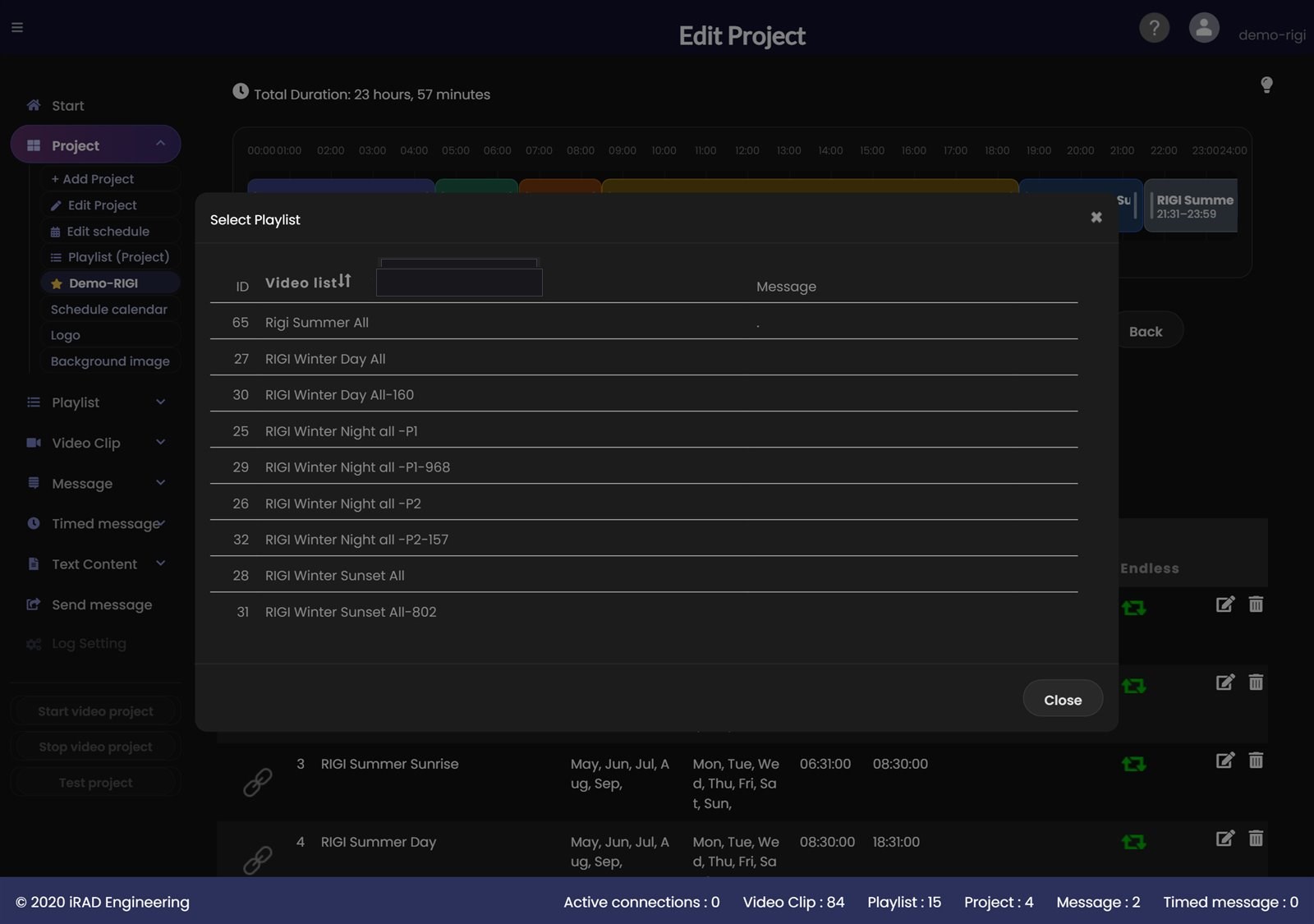
Click Add Playlist. The list of your playlists appears. One click on an entry adds it to the project, without any further question. The new row appears immediately in the table and as a block in the timeline. Repeat this for every further playlist. Then set times, weekdays and months (see Edit project).
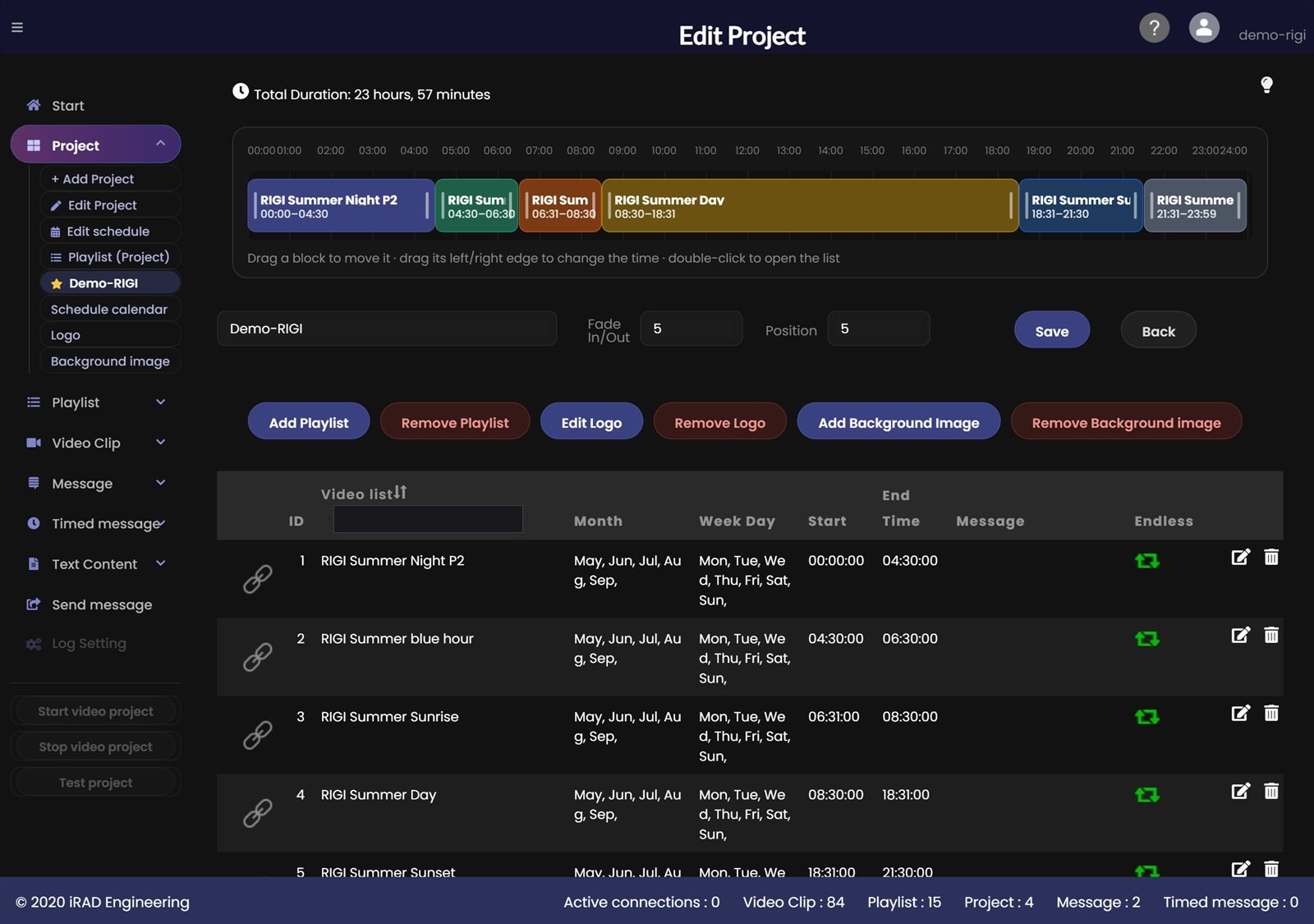
In Edit Project you can change title, fade and position and manage the playlists of the project. This is also where you set when each playlist runs. The timeline at the top shows all playlists of the project at a glance: drag a block to move it, or drag its left or right edge to change the start or end time. Double-click opens the playlist. A block stops at its neighbour, so times never overlap. The table below lists month, weekday, start and end time per playlist and can be edited as well. You can also reach the timeline directly via Edit schedule in the side menu.
You assign menu cards (text content) in the same window. You plan when a card runs in the schedule calendar. The schedules of the playlists still apply: while a player is running it always switches to the playlist whose time window fits right now. A manual start of a different playlist therefore only lasts until the player checks the schedule again (after 10 seconds at the latest).
Add Playlist / Remove Playlist – add or remove playlists. A deleted playlist stays deleted.
Month / Week Day / Start / End Time – set when each playlist runs within the project. Double-click a row to open that playlist's schedule.
Edit Logo / Remove Logo – show your own logo on top of the video (see chapter Logo overlay). Edit Logo also opens the page for the first logo of a project.
Add Background Image / Remove Background image – set a background image for the project (see chapter Background image).
Save and Back – save your changes or go back to the list.
NoteThe logo and background image buttons appear as soon as the project contains at least one playlist.
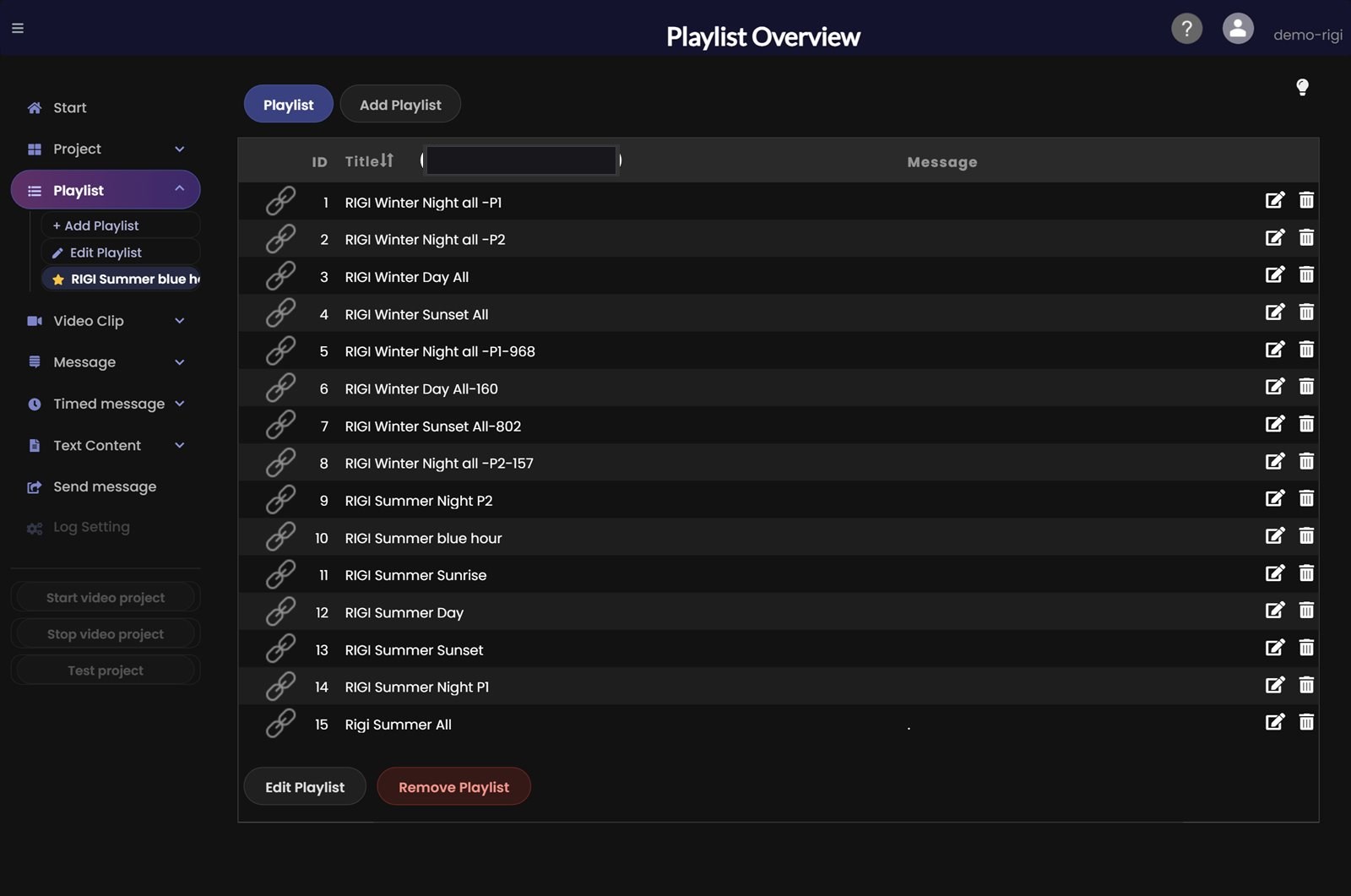
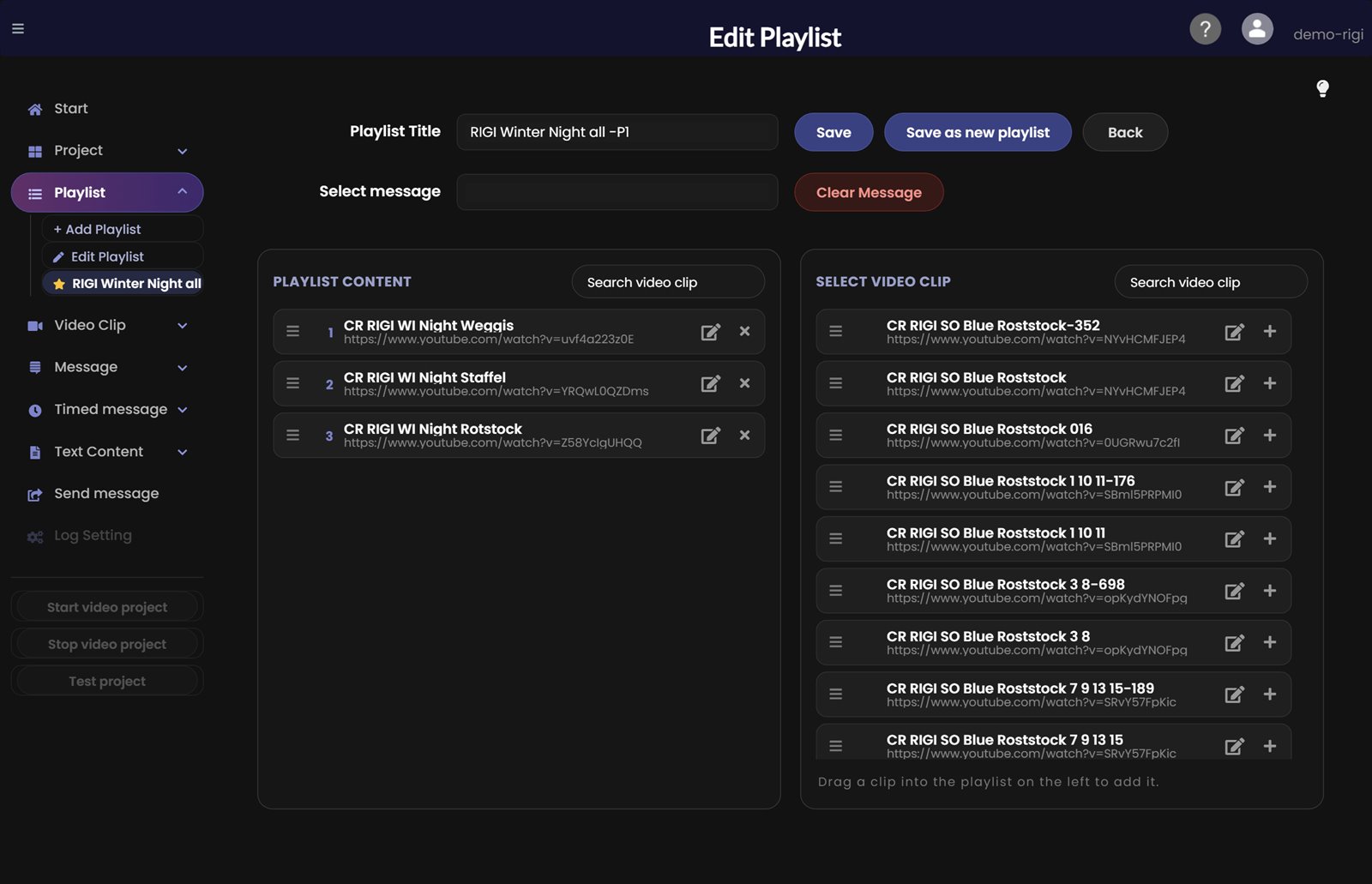
Here you see all playlists you have created. You can create, edit and delete playlists.
Open the Playlist page from the menu.
Click the edit icon at the end of a row to change that playlist. Alternatively select the row and click Edit Playlist below the list.
Click the trash icon at the end of a row to delete that playlist. Alternatively select the row and click Remove Playlist below the list.
To create a new playlist, click the tab Add Playlist.
NoteA playlist is independent of time, weekday and month – it only contains video clips and, optionally, a message. You set when it runs only once you add it to a project (see chapter Project).
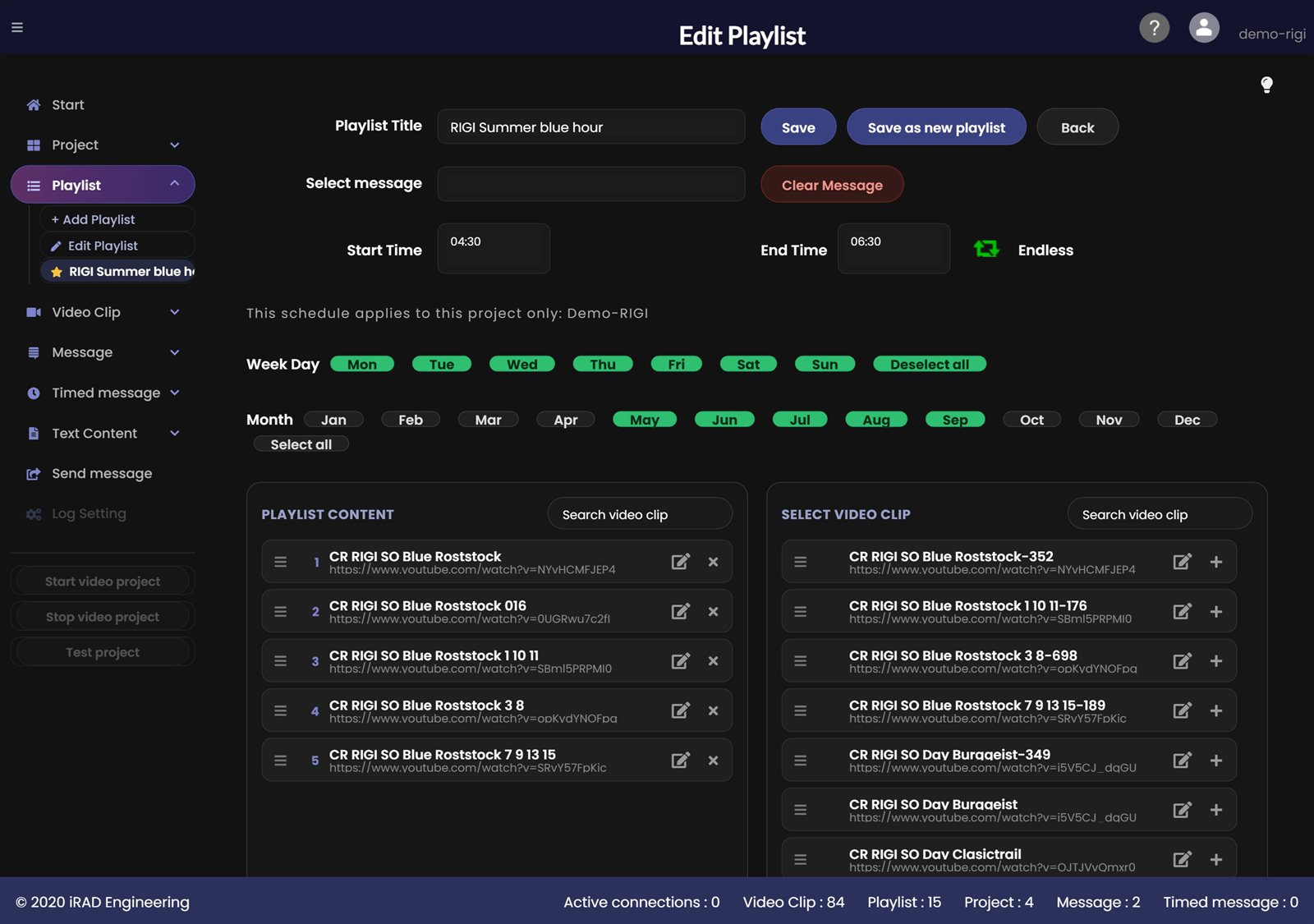
You set when a playlist runs in the project. A double-click on a block or a table row opens the playlist with its schedule: start time, end time (or endless), weekdays and months. The note "This schedule applies to this project only" shows that these times only apply in the project named: the same playlist can have different times in another project. Weekdays and months marked green are active.
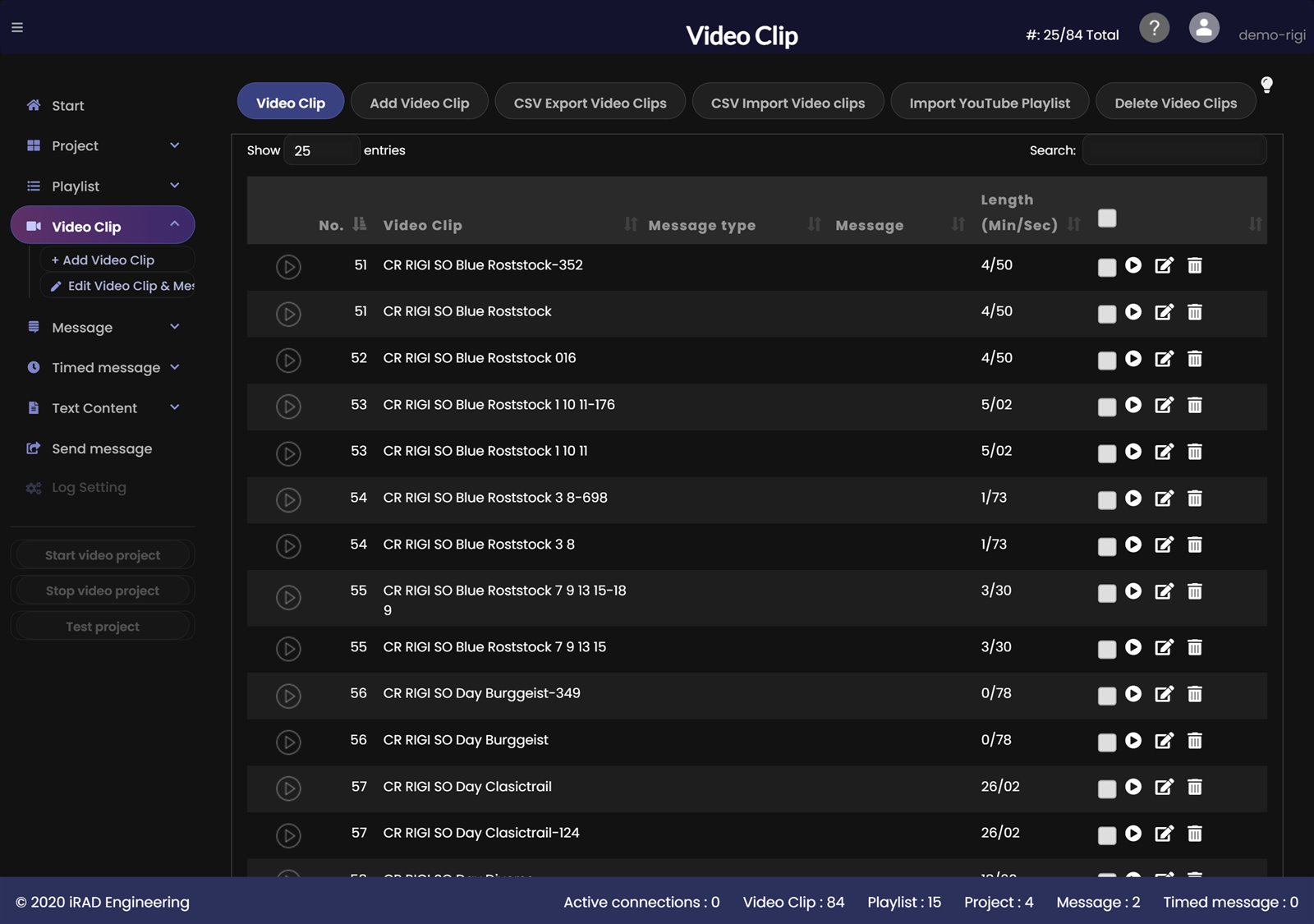
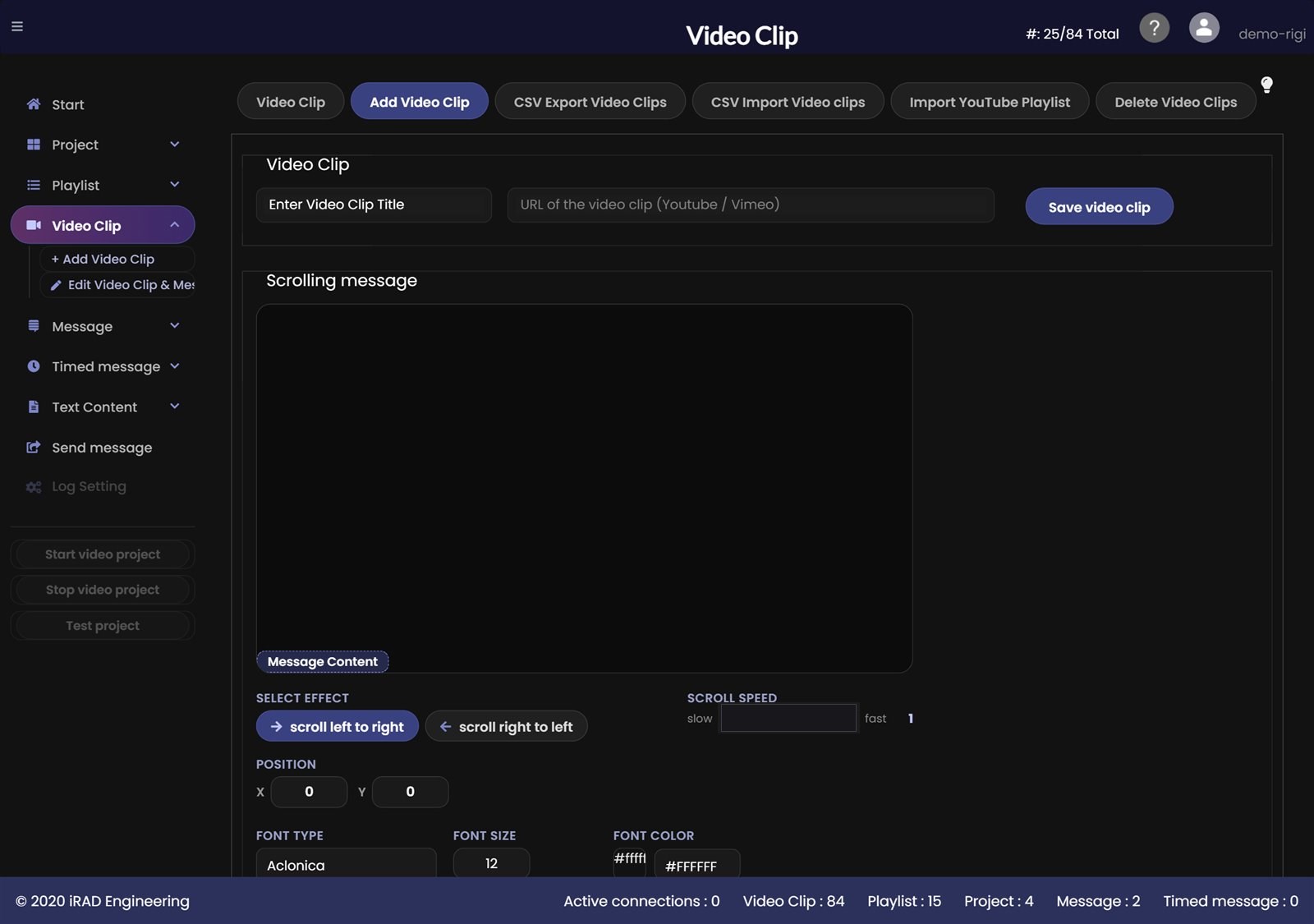
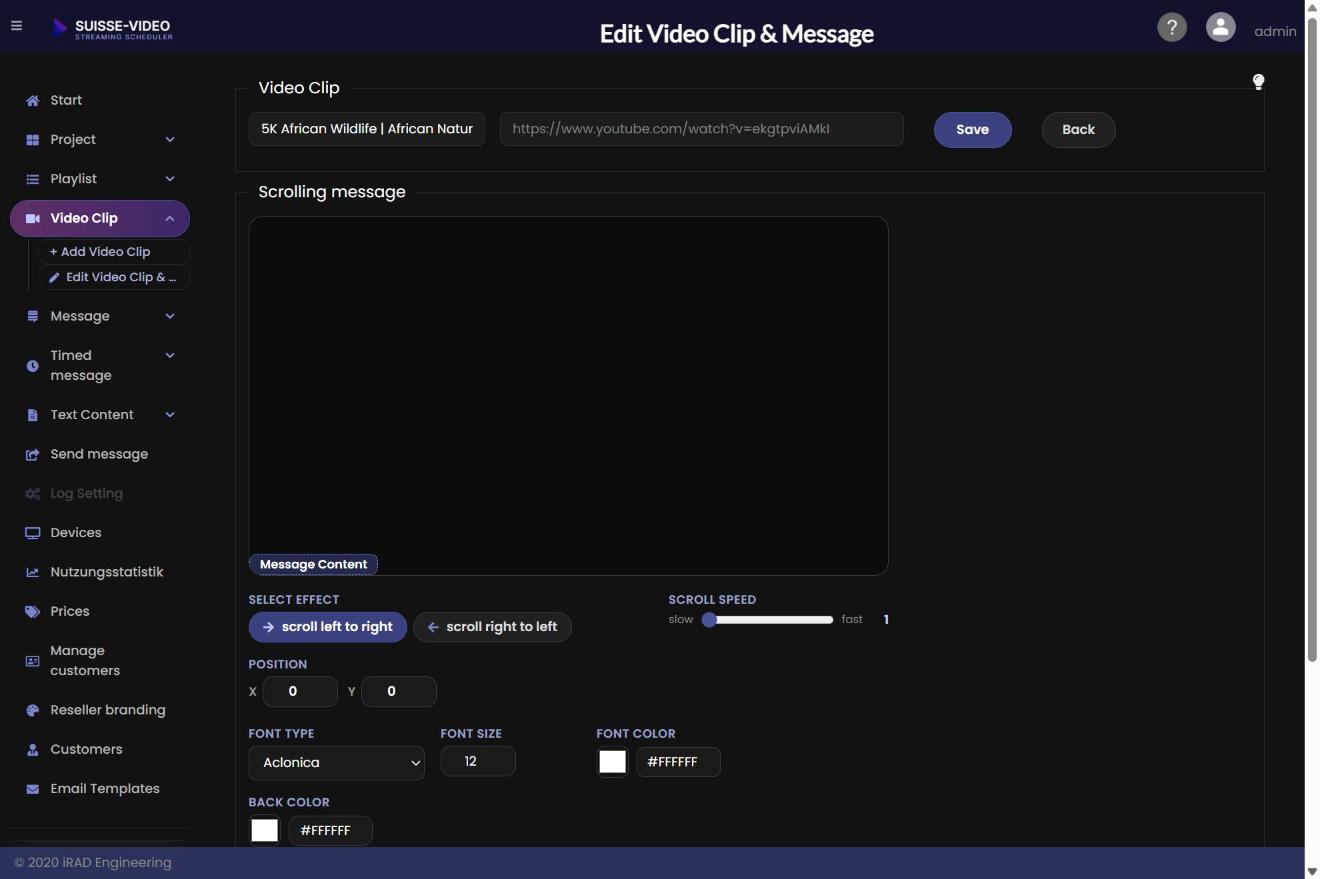
Click the pencil icon in the video clip list to change a clip. You can adjust the title and the link (YouTube or Vimeo). The duration is taken from the link. Save applies the change; it applies in all playlists that contain this clip.
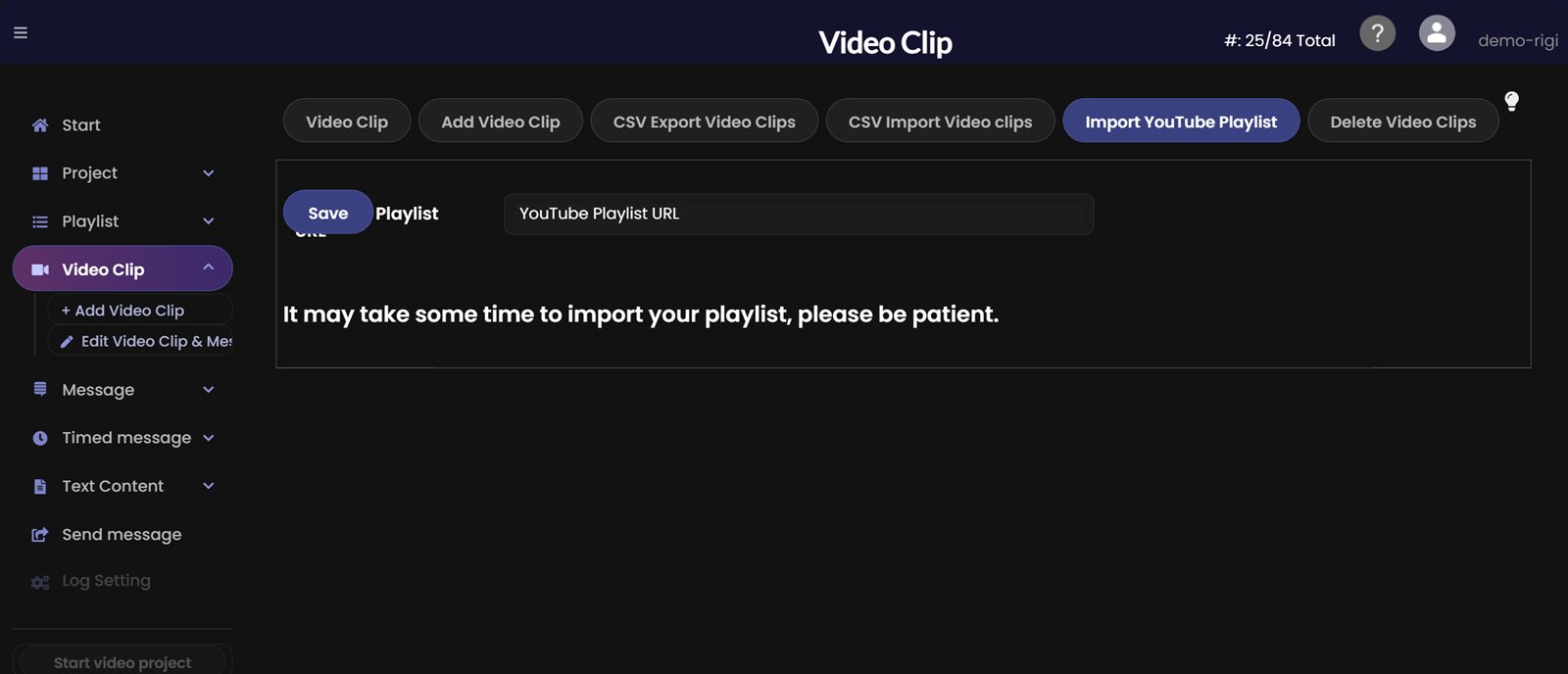
Click Import YouTube Playlist, enter the address of the YouTube playlist and click Save. Playlists are imported one by one. This may take some time, please be patient.
A timed message is shown in a project from a start time to an end time. Enter the text and set the parameters as described for messages, then set the timing:
Select Project – choose the project in which the message is shown.
Disable – switch off the message that is currently active.
Start Time and End Time – the period in which the message is shown.
Show and Hide – when you use an alternating message, set in seconds how long it is shown and how long it is hidden.
Save as template and Template Name – save the message as a template for later campaigns.
Save timed message – save. Back returns to the list.
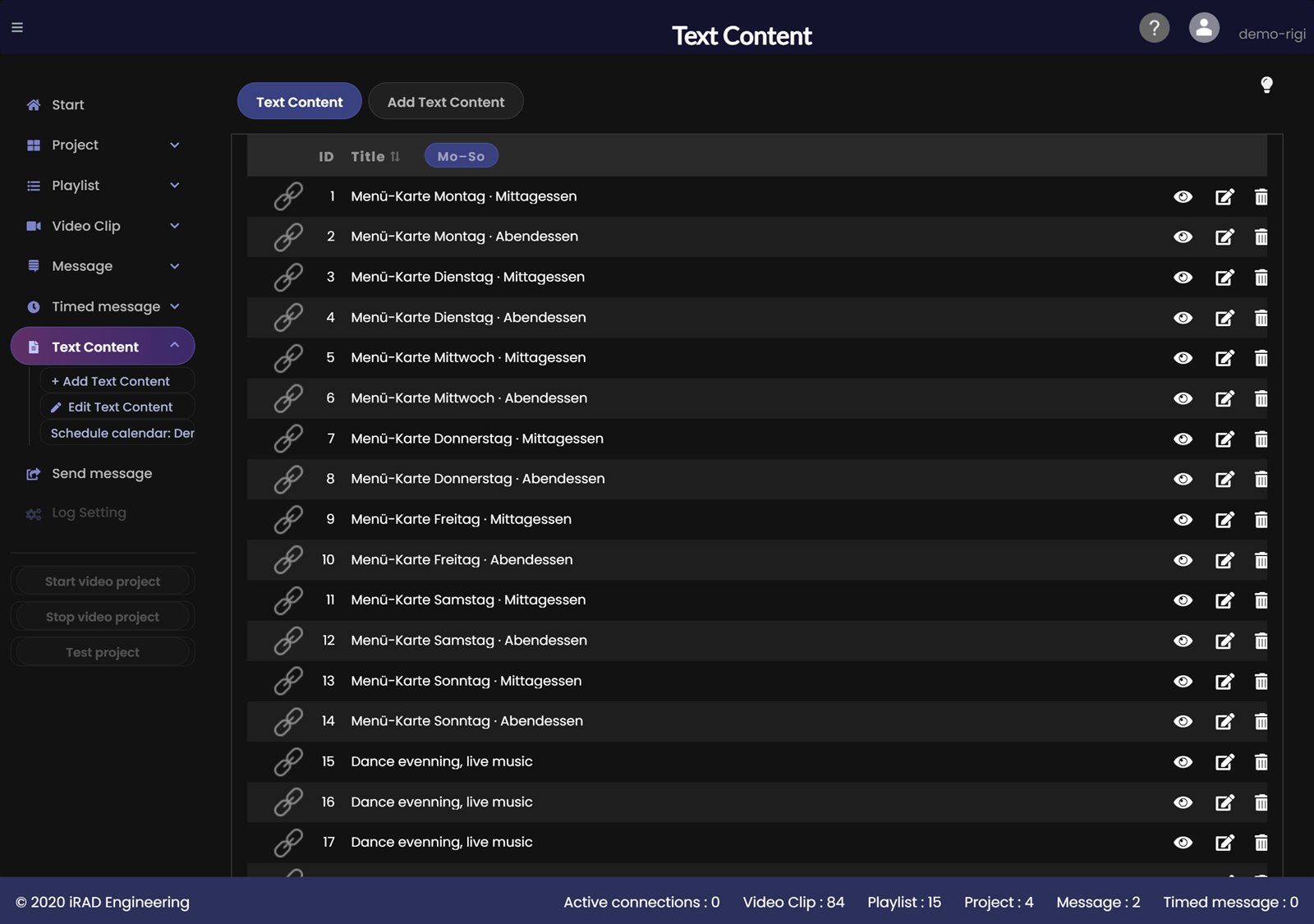
With Text content you show styled text instead of the video, for example a daily menu card, a conference notice or an announcement. Each card has a title, the text, a background and a scroll setting. When a card is shown is set in the schedule calendar. A card can have any number of events.
Open the Text content page from the menu.
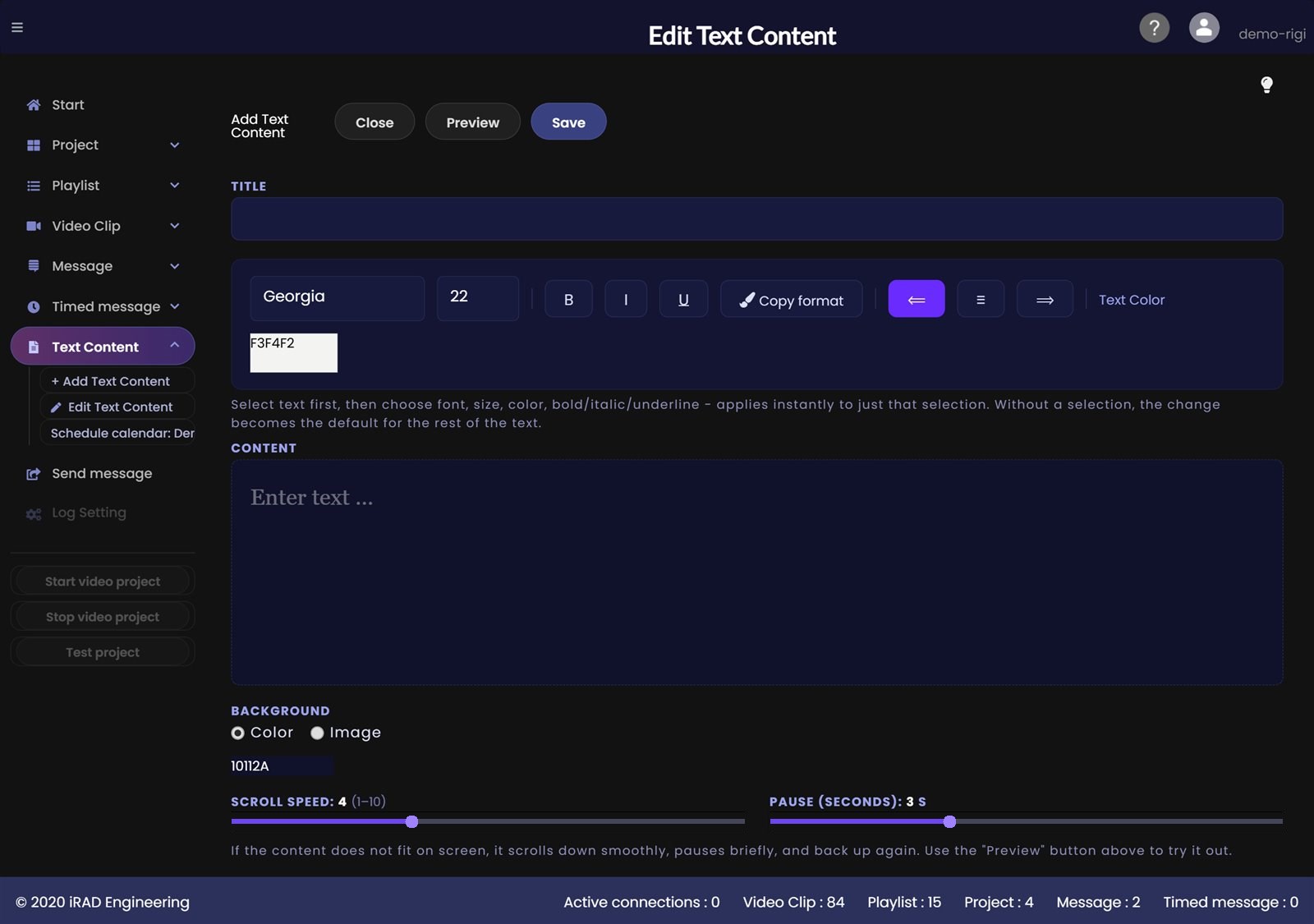
The Text content tab lists all your cards. Use the Add text content tab to create a new card.
Click Title to sort the list from A to Z and back from Z to A. Mon-Sun sorts by weekday, lunch before dinner.
The eye icon opens a preview of the card in its own window (see Previewing a card). The pencil icon opens the card for editing. The trash icon deletes the card, also from all projects and with all its events.
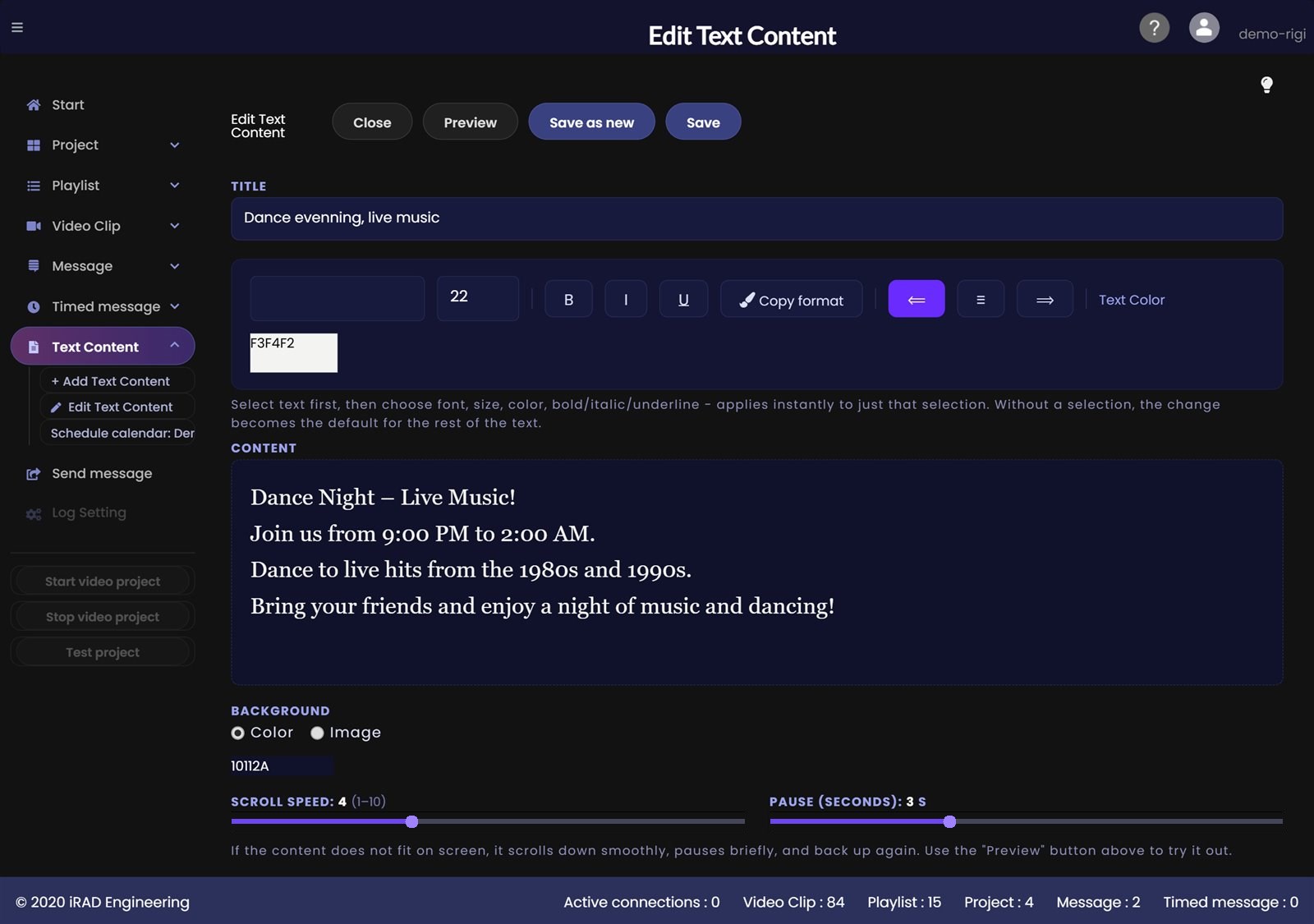
Title - the name of the card. It appears in the lists, in the project and in the calendar.
Toolbar: font, size, bold, italic, underline, alignment and text colour. Select the text first. The change then applies only to the selection. Without a selection it becomes the default for the remaining unformatted text. The toolbar always shows the properties of the selection.
Copy format - select a spot with the look you want and click the button. It changes to Paste format. Select the target spot and click again. The cross cancels.
Content - type the text directly into the field or paste it from Word or another program, including tables. A new card starts empty, the grey hint is not saved. The field shows the card the way it appears on the screen.
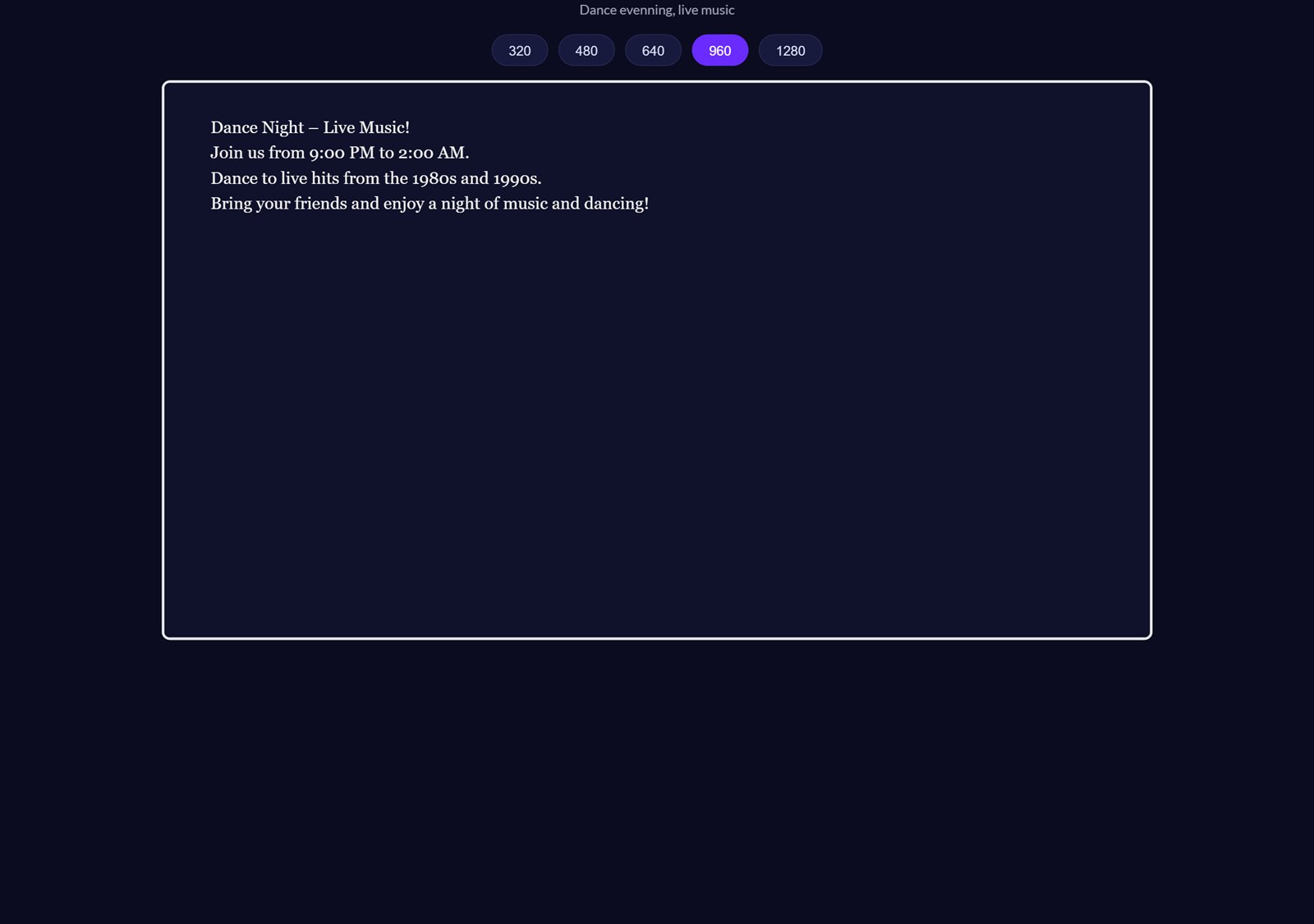
Preview - shows the card in a separate window at a size of your choice (320 to 1280 pixels), including the scroll effect. This shows how the card looks in an iFrame on your website.
Save saves and stays on the page. Save as new creates a copy (enter a different title first). Close leaves the page. If the editor was opened from the schedule calendar, Close returns you there.
Background - choose a colour or an image. With Upload image you upload your own background image.
Scroll speed - how fast the text runs if it does not fit on the screen. The value (1 to 10) is shown in the label.
Pause (seconds) - how long the text stays at the end before scrolling back. The value in seconds (0 to 15) is shown in the label and changes while you drag.
NoteIf the card does not fit on the screen, it scrolls down smoothly, pauses briefly and scrolls back up. You can see the effect with the Preview button.
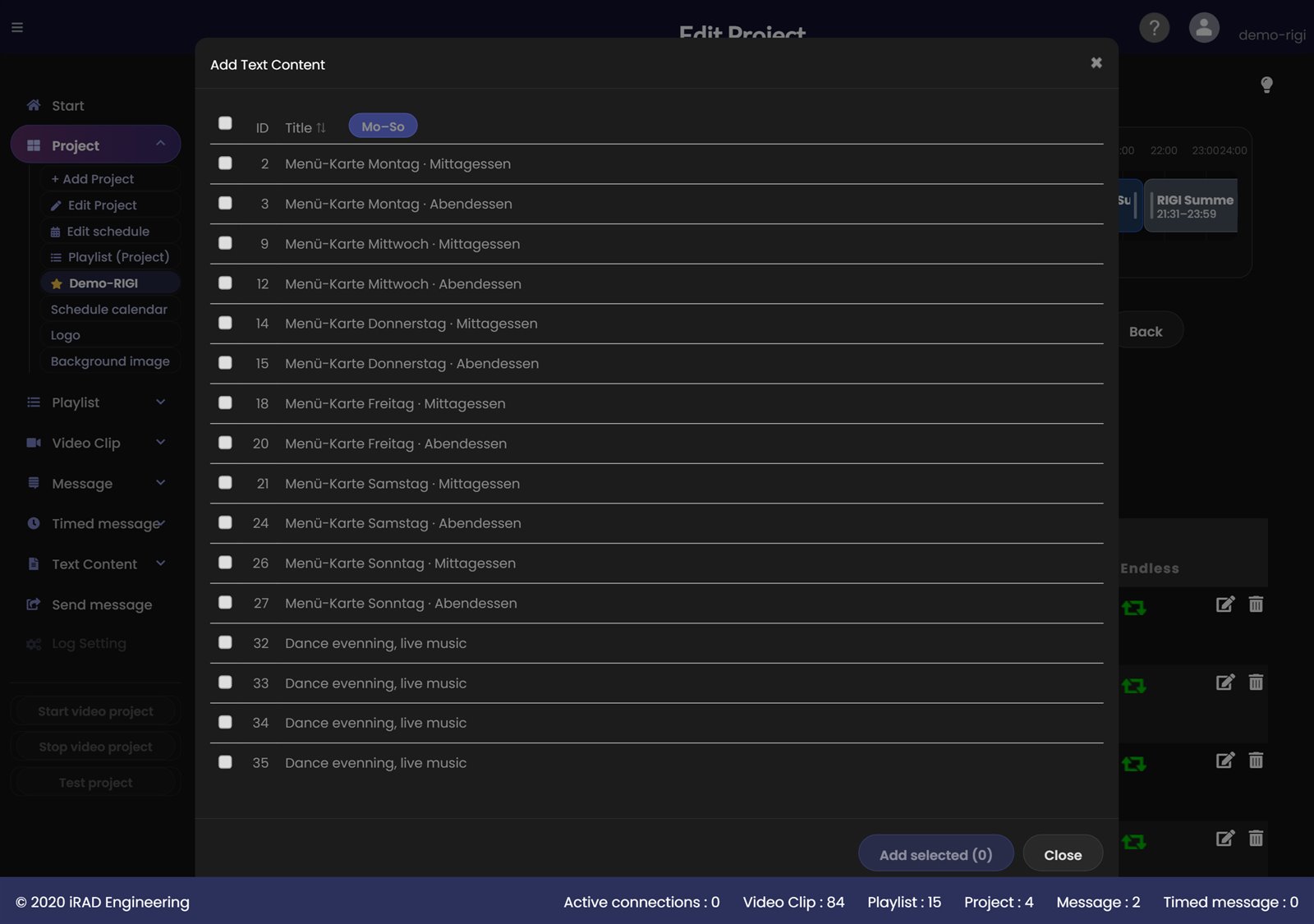
Open Edit project. Below the playlists click Add text content. The list of your cards that are not yet in the project appears. Tick the cards you want, or the box at the top for all, and click Add selected.
You can also pick or create a card directly in the event dialog of the calendar. It is then assigned to the project automatically when you save.
The added cards are listed in the table below the playlists. The assignment is saved immediately. A newly added card initially has no event and therefore does not run yet. You schedule it in the schedule calendar.
Schedule calendar (button above the table) - opens the calendar of the project (see Schedule calendar).
Events column - shows the number and the first two events per card, for example 1 · Mon · 11:00-14:00 or 1 · 12.11.2026 · 14:00-17:00. If it says No events yet, the card does not run.
Calendar icon - opens the schedule calendar. Eye icon - preview of the card. Pencil icon - opens the card for editing (text, font, background). Trash icon or Delete text content - removes the card with its events from the project. The card itself is kept.
Use Title and Mon-Sun in the table header to sort the rows.
TipIf you export a project to another customer, the cards are copied along with all their events.
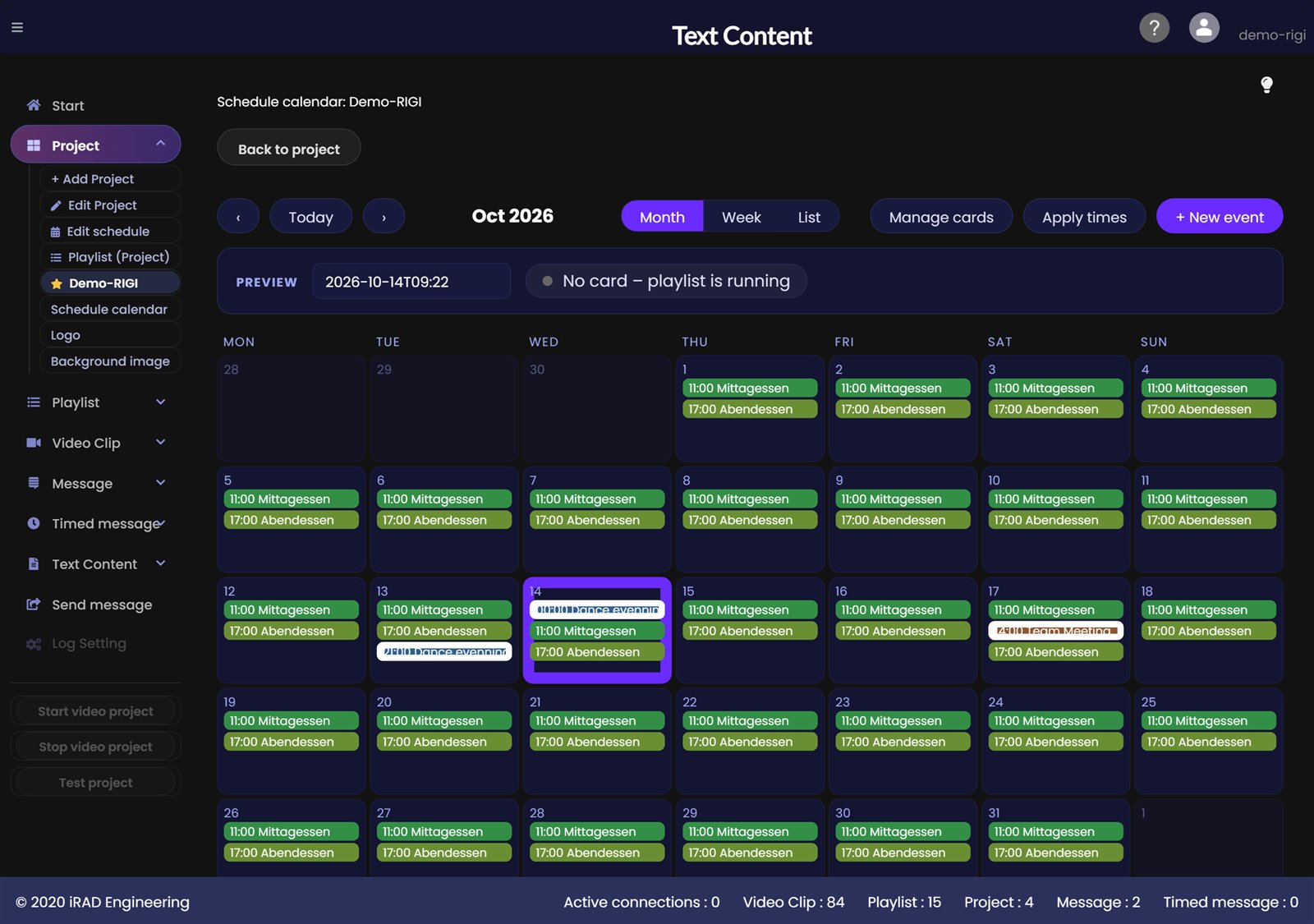
The schedule calendar shows when which card runs in the project. Open it with Schedule calendar on the Edit project page or with the calendar icon of a card. An event says when a card is shown. A card can have any number of events, for example lunch and dinner every day plus a conference on 12 November from 14:00 to 17:00. This also lets you plan months ahead.
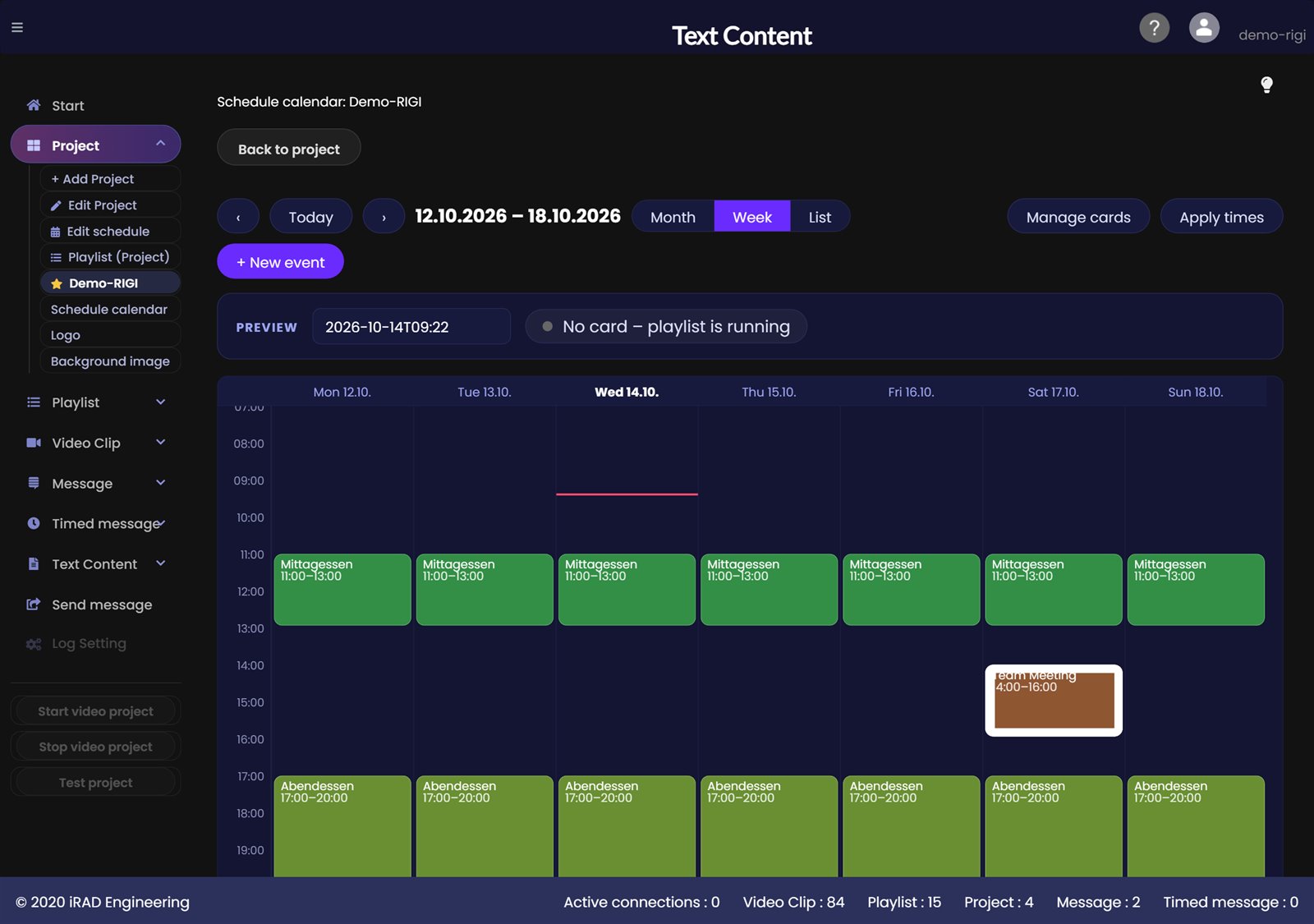
Month / Week / List - three views. Month shows every day with its entries, Week shows the times as blocks, List shows all events sorted by card.
Use the arrows ‹ and › to move through months or weeks, Today jumps to the current day. This lets you see events that only run months from now.
Each card has its own colour. Entries show the time and a short name. Weekday and "Menü-Karte" in the title are left out so that, for example, "Lunch" stays readable. An entry with a white bar on its left edge is a single-date event.
The entry that is running right now pulses green and is updated continuously, so you see at a glance what is active.
Click an entry to edit the event. Click a day to create a new event for that date. In the week view drag with the mouse to select a time range, for example 14:30 to 16:30, and the dialog opens with date and time filled in.
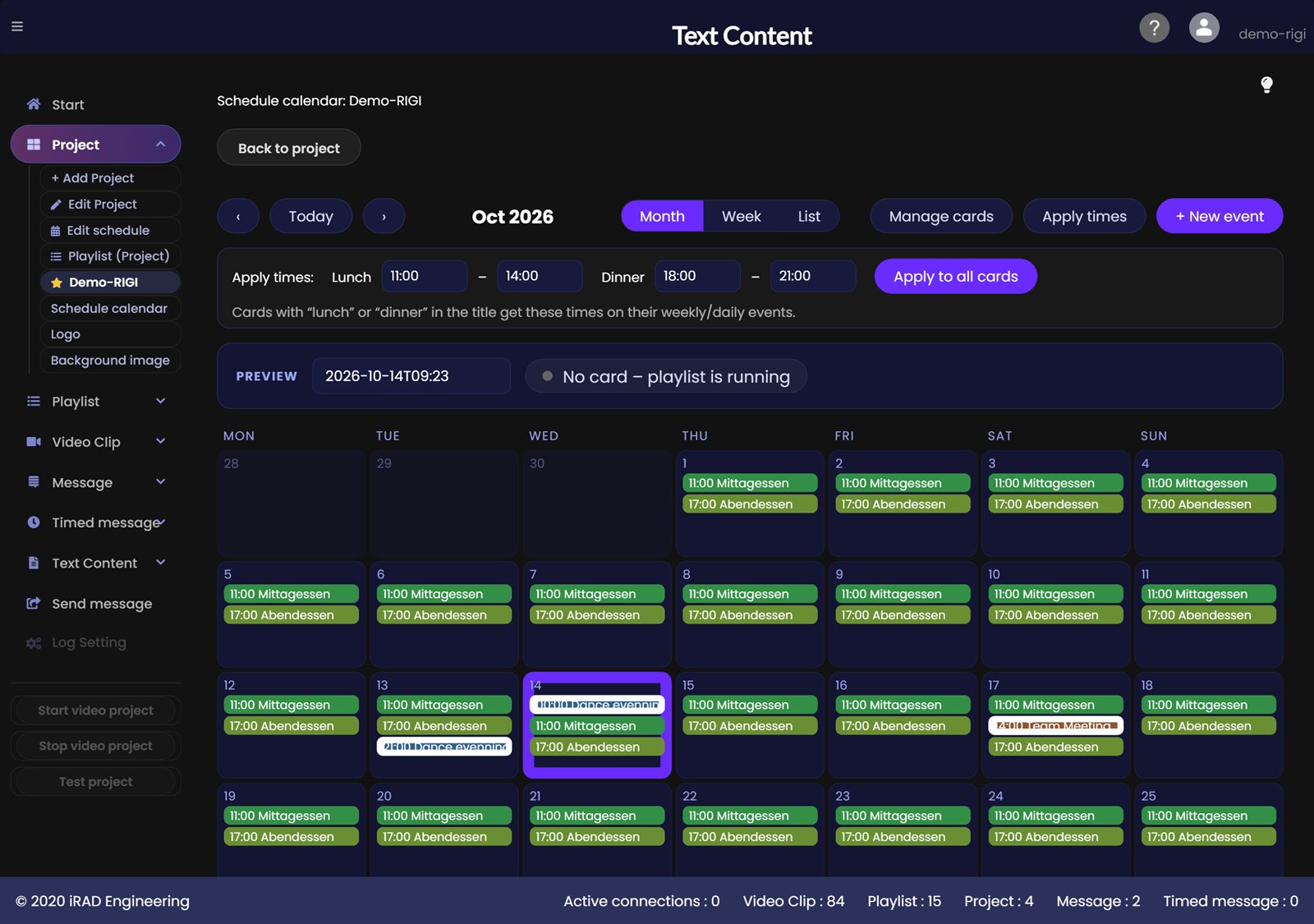
+ New event creates an event. Manage cards opens the list of your cards. Apply times sets the lunch and dinner times in one go (see below).
Preview - choose a date and time. The field next to it shows which card would run then. It lights up green when a card runs and shows "No card, the playlist is running" when nothing matches. Ideal for checking months ahead.
NoteIf no event is running at a given time, the player simply keeps playing the playlist. When an event starts, the card fades over the video, when it ends the video continues. The schedule of the playlists in the project is not affected.
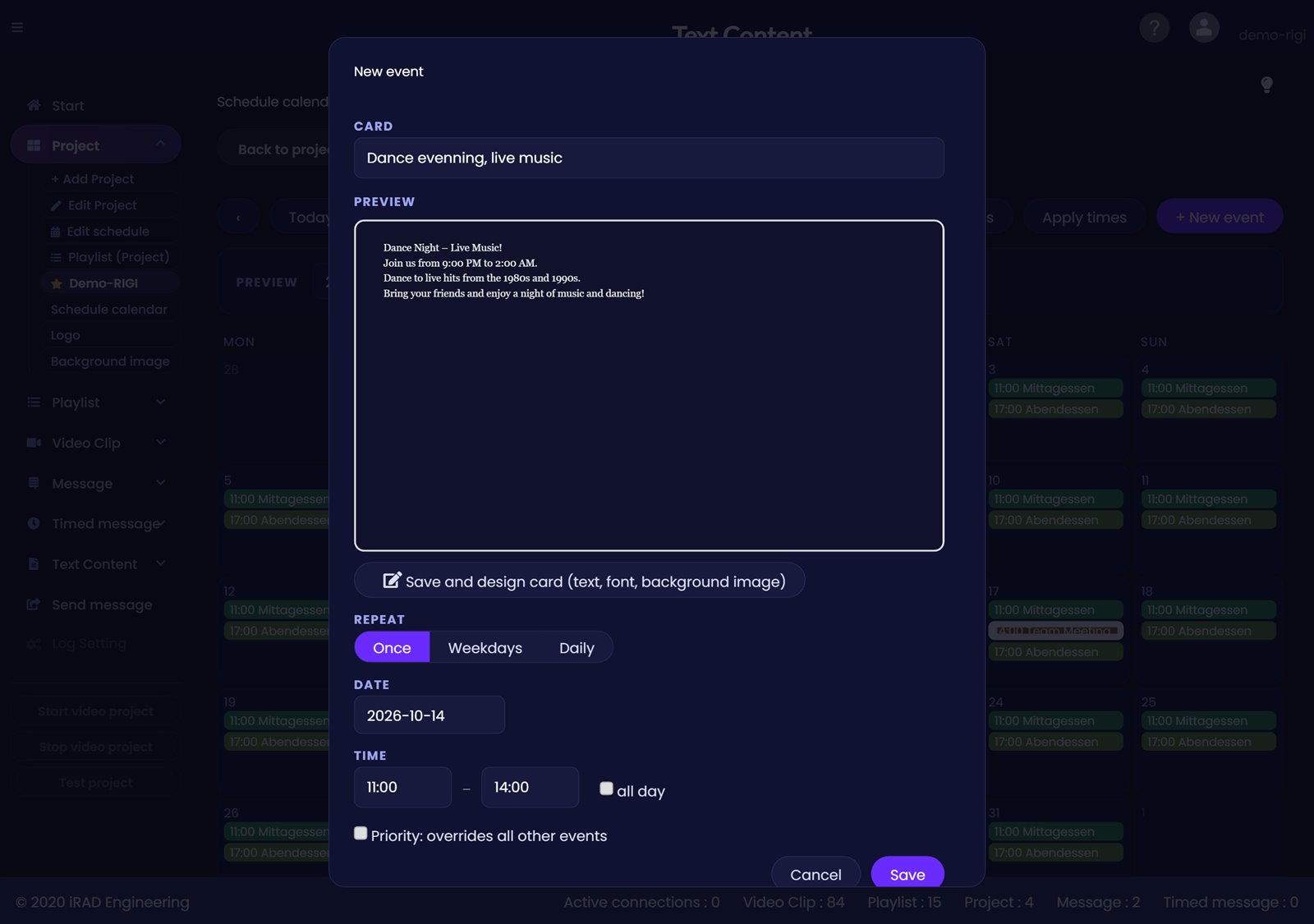
The Event dialog opens with + New event, a click on a day or a click on an entry.
Card - choose the card. Cards that are not yet in the project carry the note "not in project yet" and are assigned automatically when you save. With + Create new card you enter the title and text of a new card directly, for example "Team Meeting". You adjust the layout later in the editor.
Preview below the card - shows the card with font, colours and background image the way it appears on the screen. For a new card you see your input as you type.
Save and design card - saves the event and opens the editor with text formatting and background image. Close in the editor returns to the calendar.
Repeat - Once (a specific date, for example a conference), Weekdays (every week on the chosen days) or Daily.
Date for Once. For Weekdays and Daily you can set Valid from and Valid until, for example for a Christmas menu from 1 to 24 December. Only in these months limits the event to certain months, for example a winter menu from November to February. Empty means all months.
Time from / to - the time window. With all day the card runs the whole day. The start must be before the end. 00:00 (midnight) is allowed as the end. To run an event past midnight, create two events: until 00:00 and from 00:00.
Priority: overrides all other events - the event wins against every other one, even a more specific one. Such events are marked with a ★ in the calendar.
Save, Duplicate (creates a copy of the event, handy for similar events), Delete and Cancel. If an event with the same details already exists, the application does not create it twice; a note appears.
If events overlap, the most specific one wins. The order from strong to weak:
Priority: overrides all other events (manual priority, ★)
Single-date event (a specific date)
Period (with Valid from / until)
Event with months
Weekly rhythm (regular weekdays or daily)
On a tie the shorter event wins, then the newer one.
TipExamples: (1) Lunch card Mon-Sun 11:00-14:00 and dinner card Mon-Sun 18:00-21:00: two events, otherwise the playlist runs. (2) Conference on 12 November from 14:00 to 17:00: one single-date event, it beats the weekly rhythm. (3) Christmas menu from 1 to 24 December: one event with a period, the normal menu stays unchanged and continues afterwards. (4) Winter menu only November to February: one event with months.
If lunch and dinner times repeat, enter them once: in the calendar click Apply times, enter lunch and dinner from/to and click Apply to all cards.
Cards with "lunch" in the title get the lunch times, cards with "dinner" the dinner times, on all their weekly and daily events. Single-date events stay unchanged.
There are four places where you can look at a card in advance:
Eye icon in the card list and in the project table - opens the card for viewing only in its own window, without the editor. At the top you choose the width (320 to 1280 pixels), long texts scroll as on the screen. If a preview window is already open it comes to the front.
Preview in the editor - the same view, straight from the editor.
Preview in the event dialog - shows the chosen card in small.
Preview field in the calendar - shows for any date and time which card would run then.
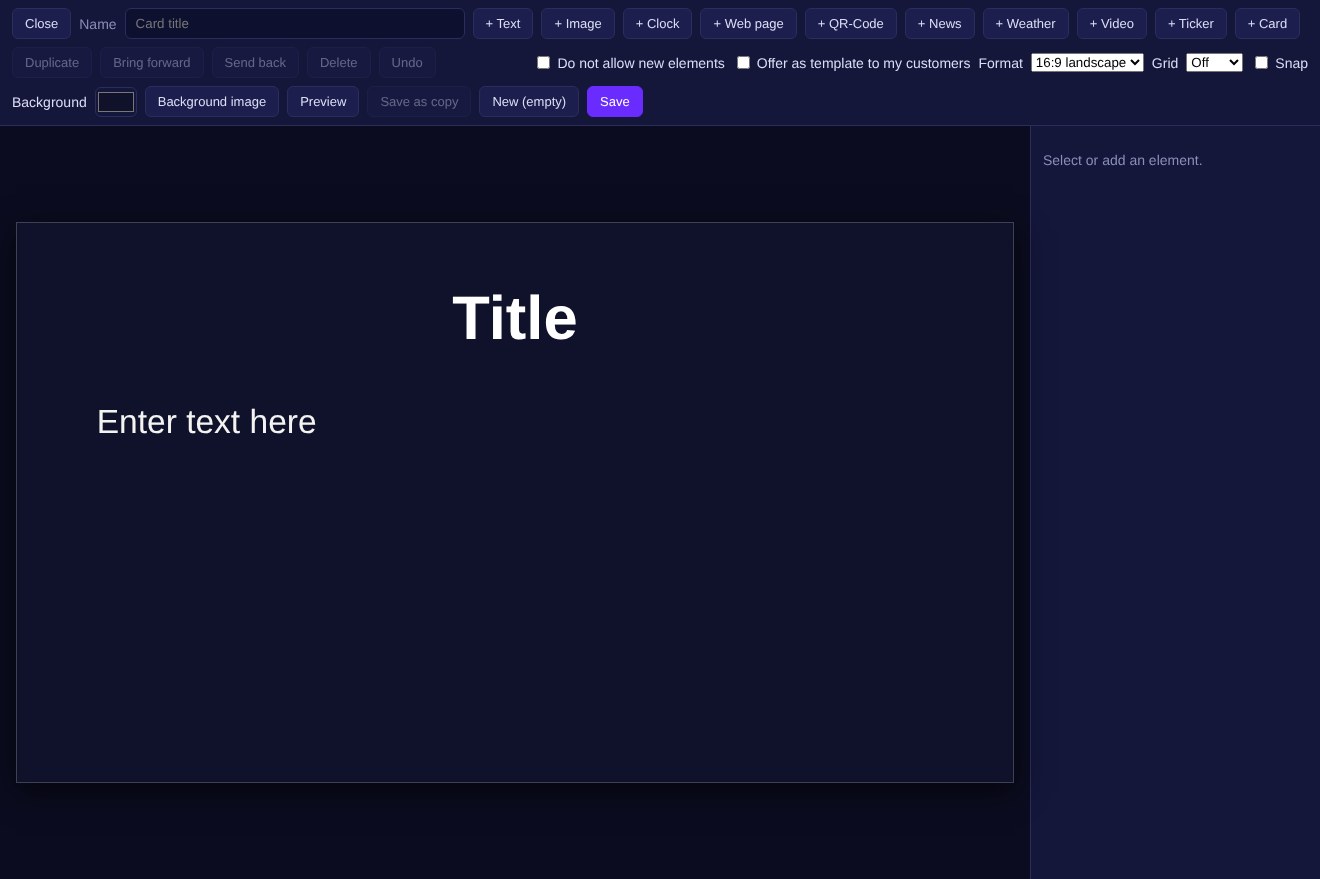
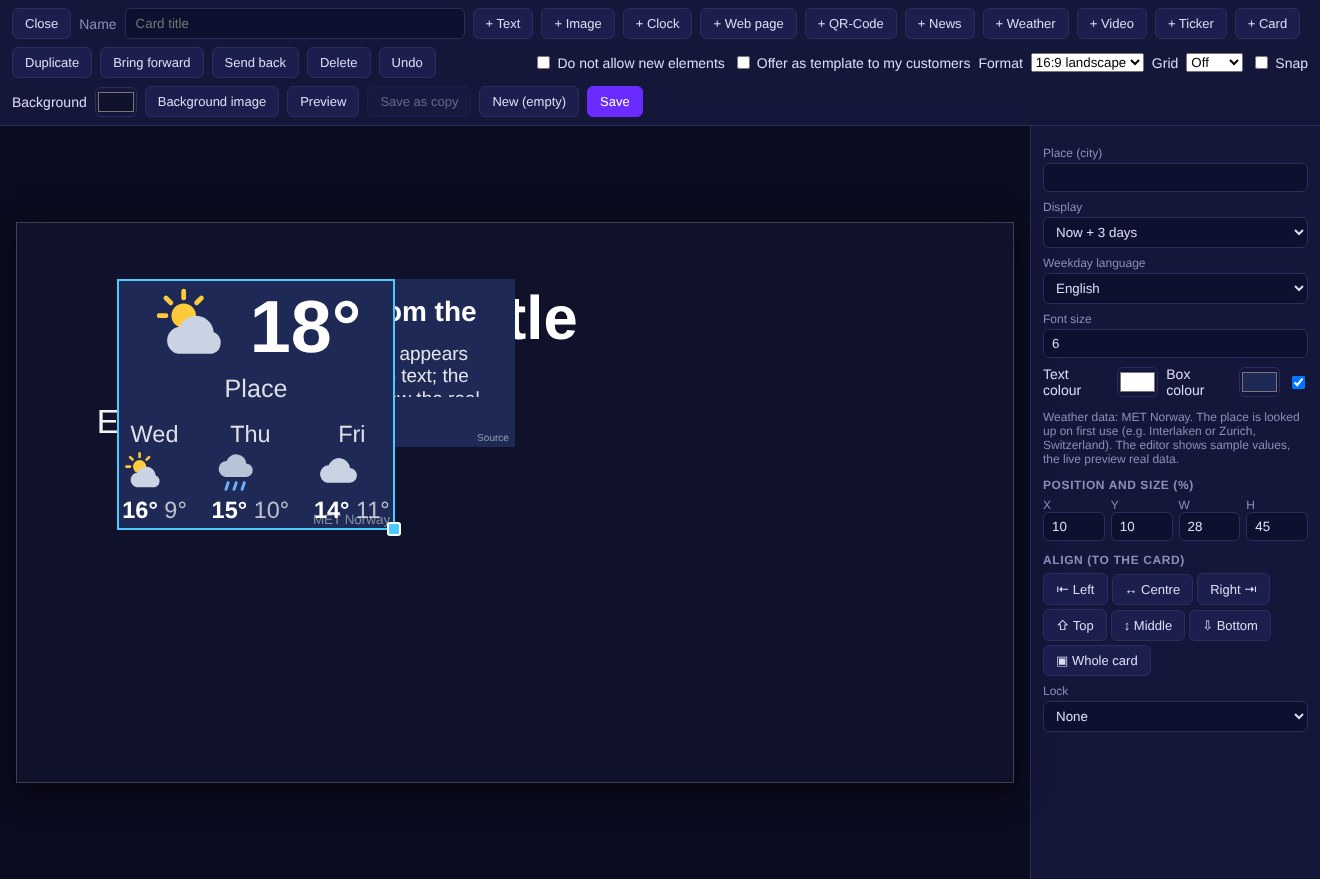
You design a layout card freely: you place elements such as text, image, clock, weather or a video window on a canvas. Open Text Content in the menu and choose New layout card. Open an existing layout card with the pencil icon.
Name – the title of the card. It appears in the lists, in the project and in the calendar.
+ Text, + Image, + Clock, + Web page, + QR code, + News, + Weather, + Video, + Ticker, + Card – add an element (see Elements).
Duplicate, Bring to front, Send to back, Delete and Undo act on the selected element.
Format – aspect ratio of the card, for example 16:9 landscape or 9:16 portrait.
Grid and Snap – show a grid and make elements snap to it when you move them.
Background – colour of the card. Background image puts an image underneath, Remove image takes it away.
Preview – shows the card as it appears on the screen (weather and news with real data).
Save saves the card. Save as copy saves it under a new name, New (empty) starts a new card, Close returns to the list.
ImportantDo not forget to click Save before you close.
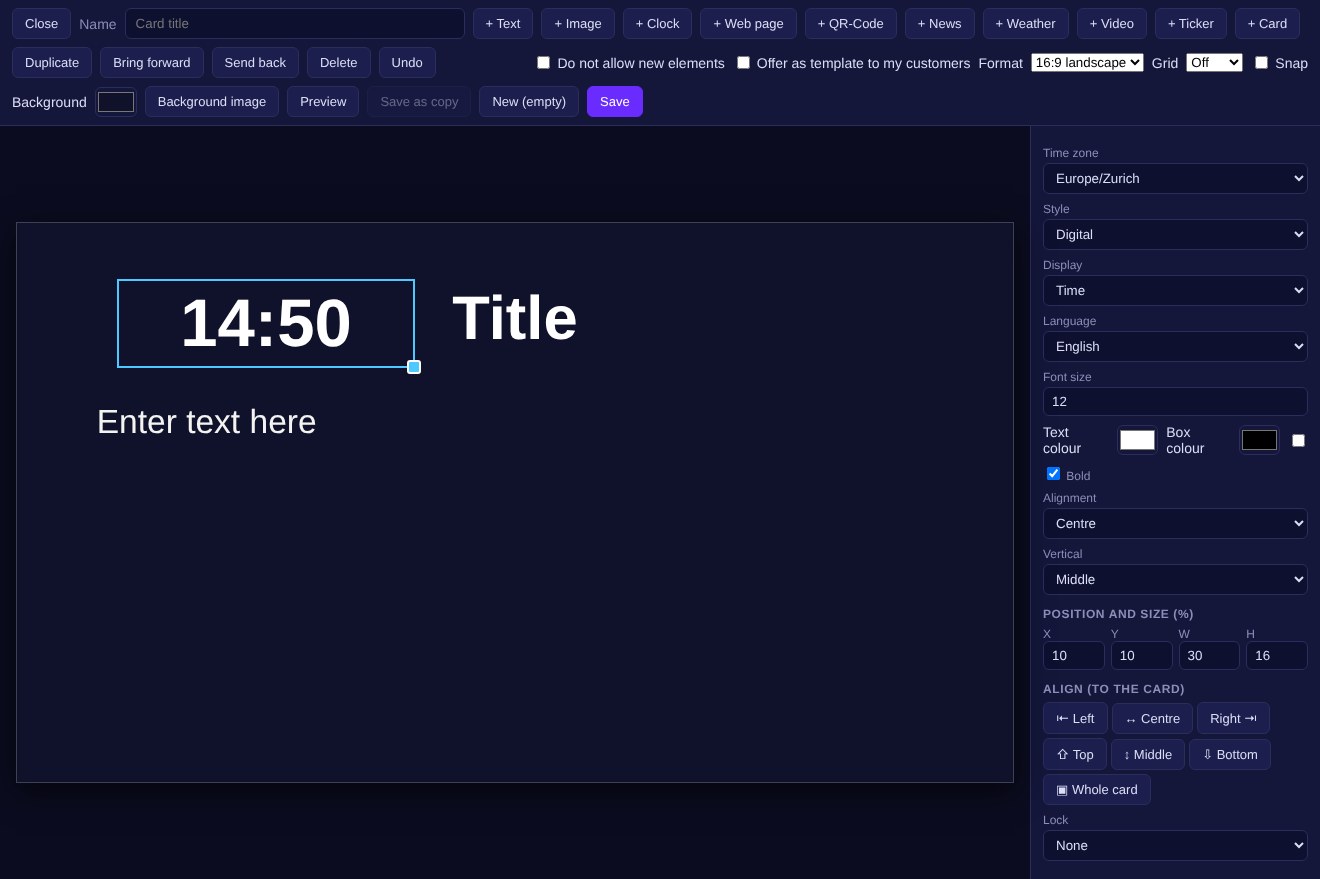
Click an element on the canvas: its settings appear on the right. Move it with the mouse and resize it at the corner handle. Under Position and size (%) you can also enter exact values, Align aligns the element to the card.
Text – content, font size, text colour, box colour, bold, horizontal and vertical alignment.
Image – upload an image (PNG, JPG or BMP). Fit shows the whole image, Fill fills the box.
Clock – digital or analogue (round clock). Display: time, time with seconds, date, date and time. Plus time zone and language.
Web page – shows an https page in the box; Reload sets how often it refreshes. YouTube and Vimeo links are embedded automatically as a muted endless video.
QR code – a QR code for a web address, for example for the menu or the Wi-Fi.
Video – a video window: the current playlist video keeps playing while the card is shown. There is only one video window per card. You also set the corner radius.
Ticker – scrolling text. Speed from 1 to 10.
Card – shows another of your cards in this box, for example the daily card. Changes to that card appear automatically.
NoteThe editor does not load web pages or play videos. Open the Preview for that.
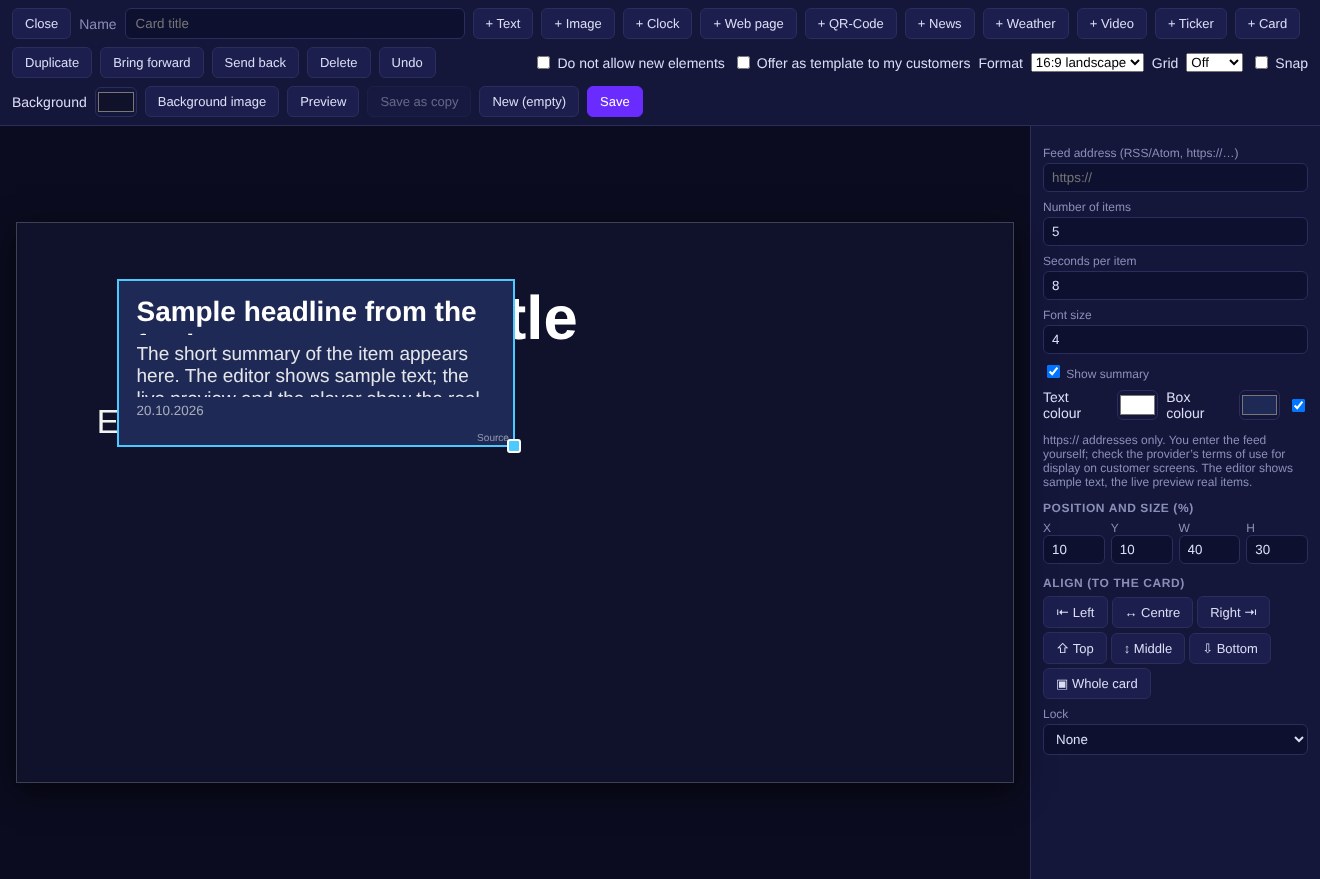
+ News shows items from a news feed, + Weather shows the weather for a place. Both update themselves on the screen.
News: Feed address (RSS or Atom, https:// only), Number of items, Seconds per item and Show summary.
Weather: Place (city), Display (Now + 3 days or Now only) and Weekday language.
The editor shows sample values. You see real items and real weather data in the Preview.
NoteYou enter the news feed yourself; check the provider’s terms of use for display on customer screens. Weather data comes from MET Norway. The place is looked up on first use, for example “Interlaken” or “Zurich, Switzerland”.
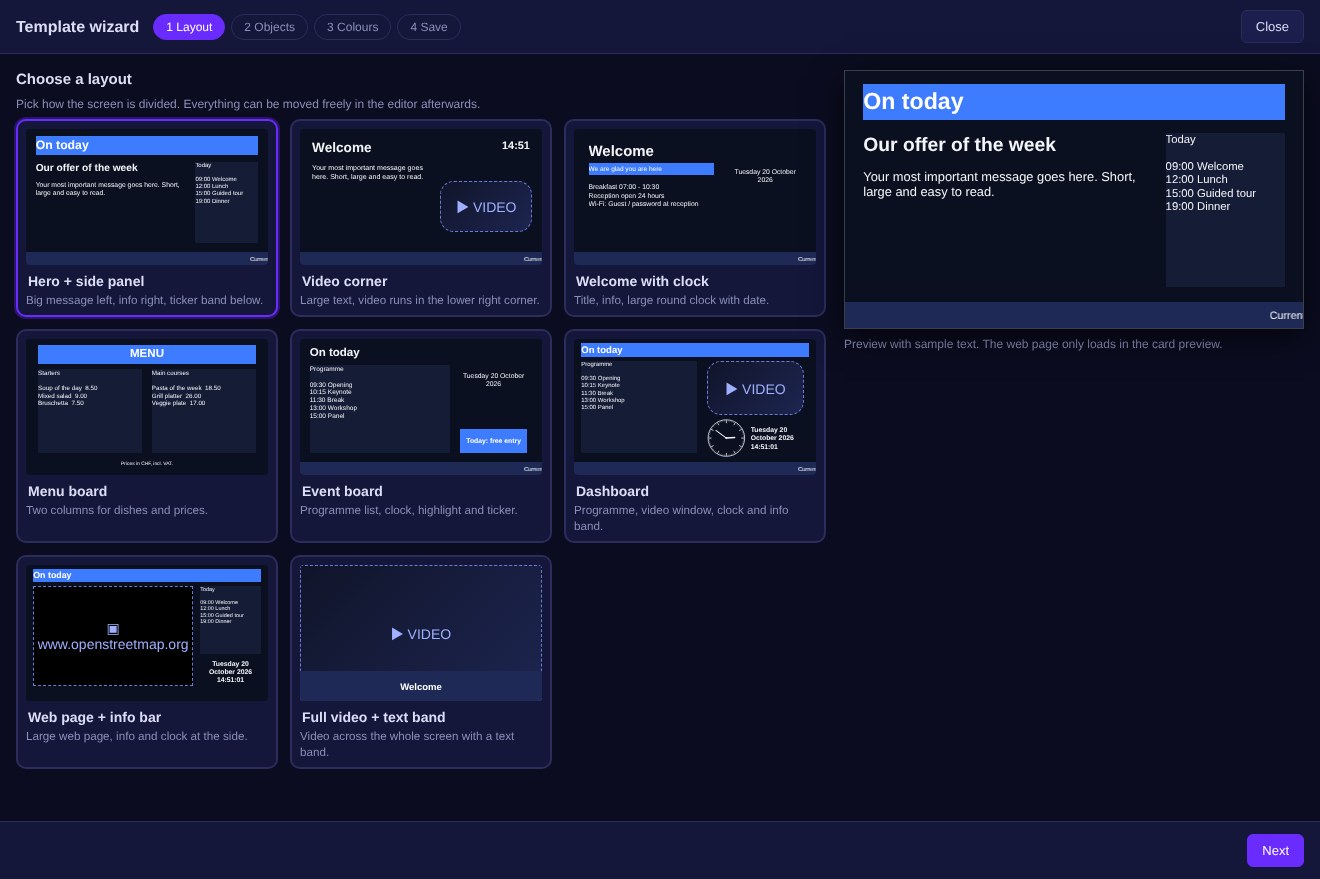
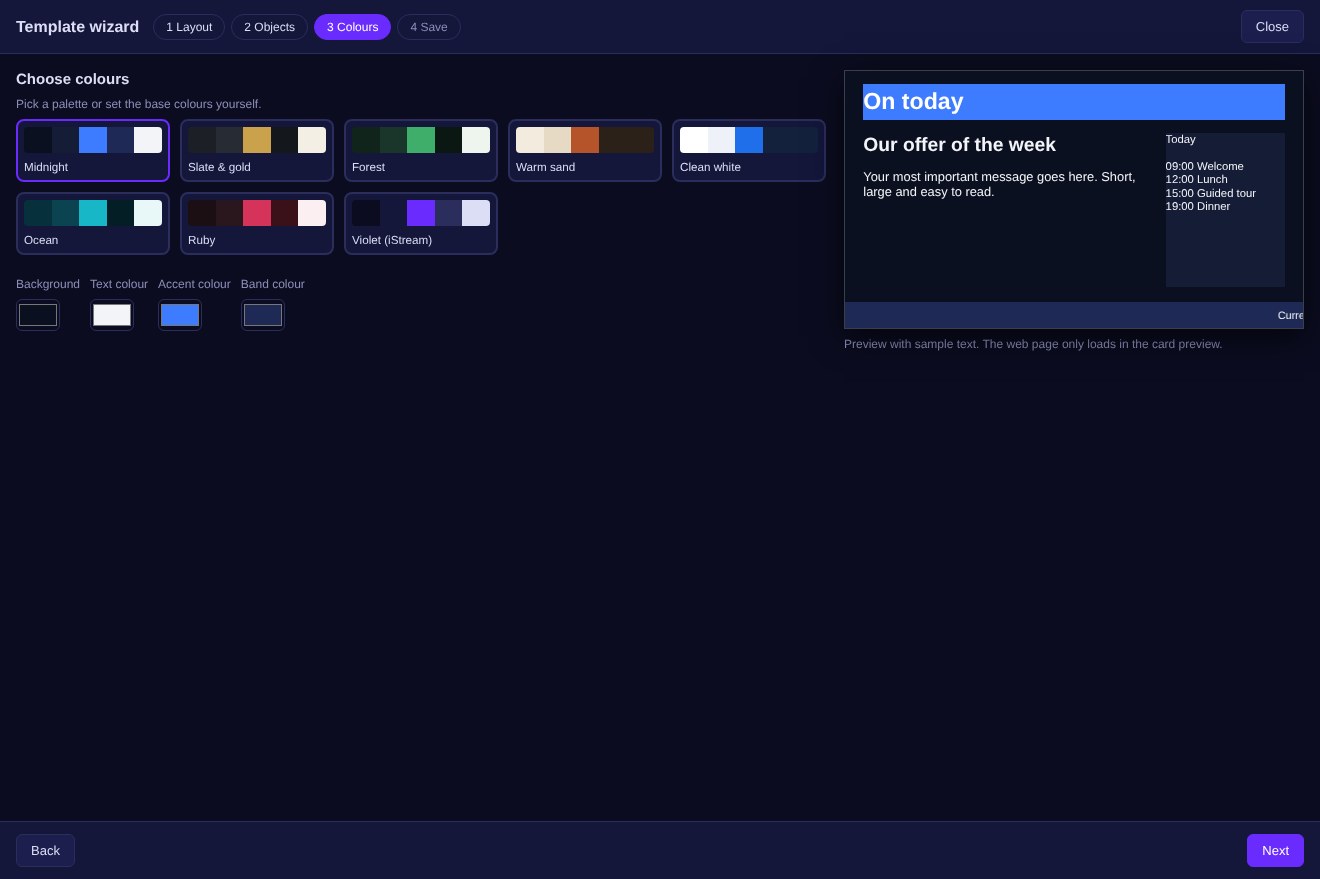
The template wizard builds a card for you in four steps. In the Text Content menu open Template wizard. Use Next and Back to move between the steps; on the right you see a preview with sample text.
1 Grid – choose how the canvas is divided.
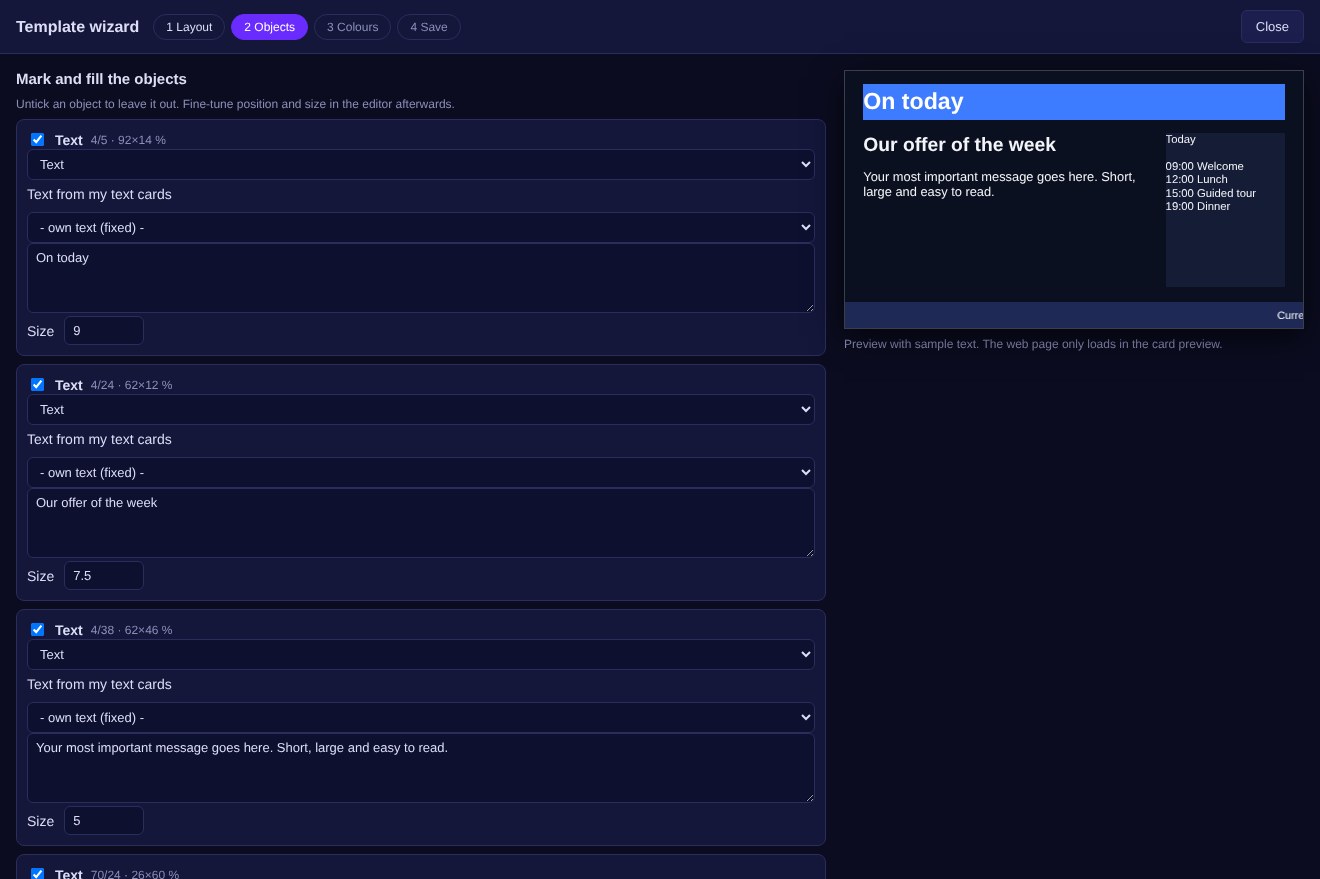
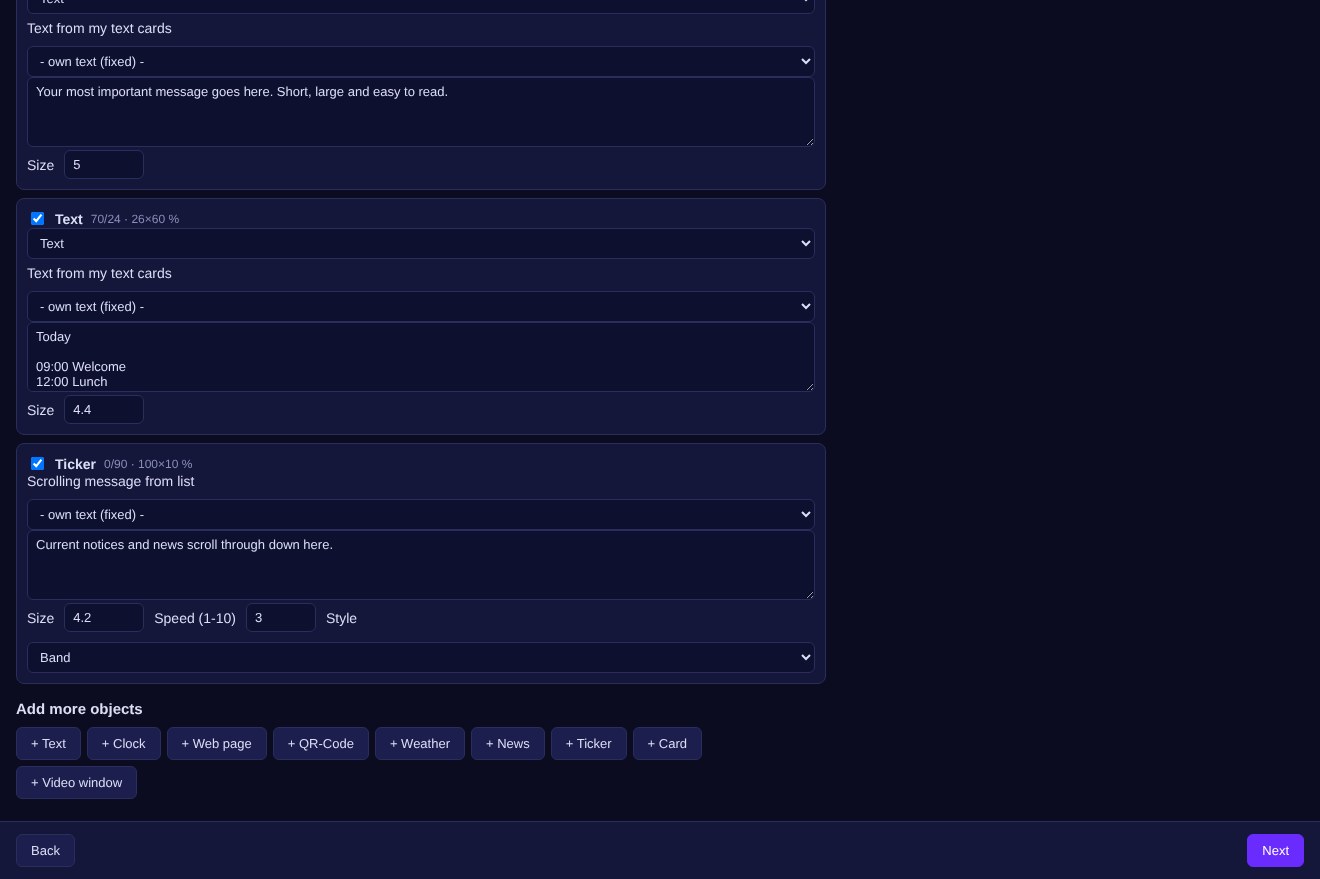
2 Objects – tick and fill the objects (text, clock, web page, video window, ticker, news, weather). Untick = leave the object out. Add more objects adds further ones. For the ticker you choose the style (Band, Subtle, Accent, News ticker, Promo) and the speed.
3 Colours – choose a palette or set background, text, accent and band colour yourself.
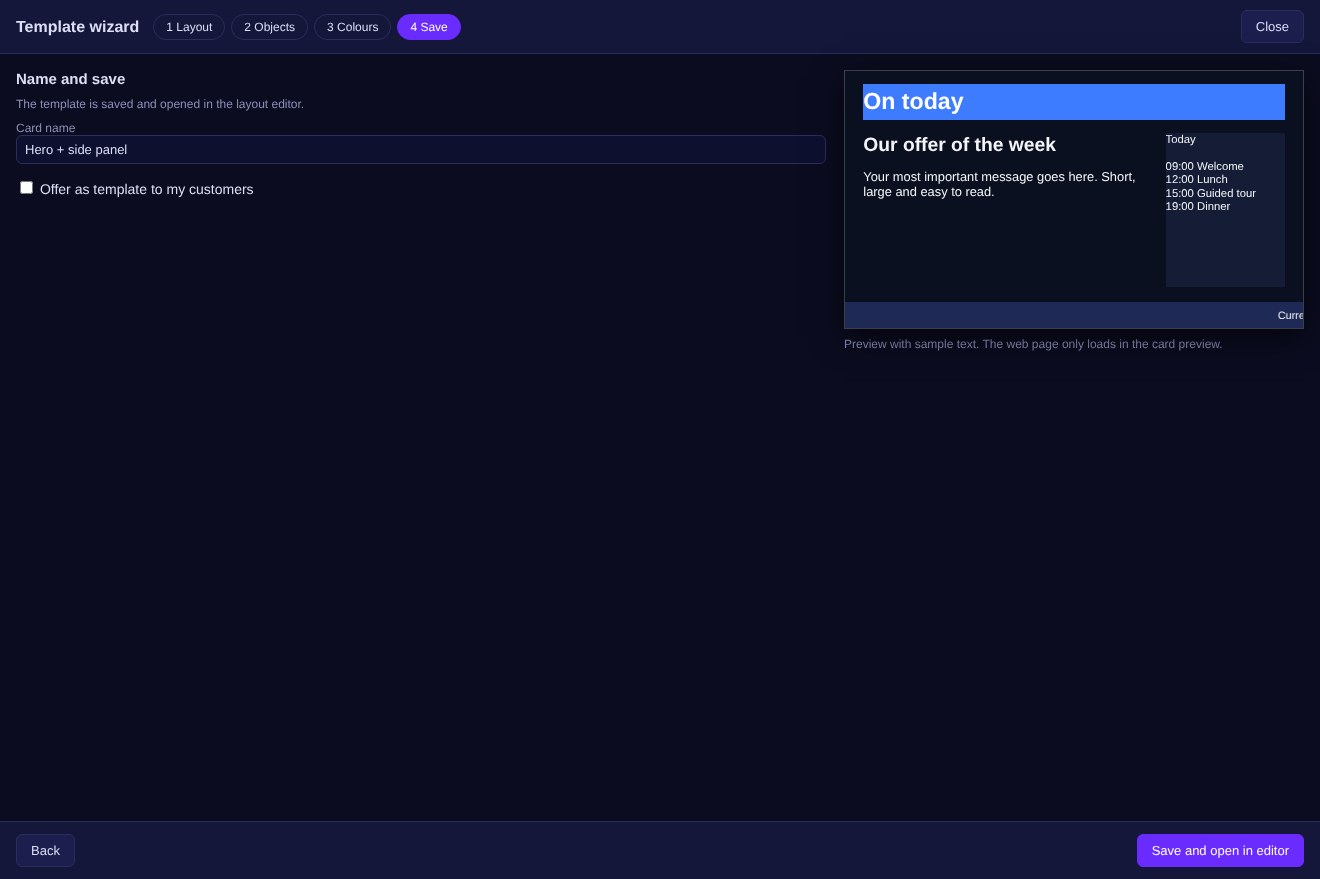
4 Save – enter the card name. Save and open in editor creates the card and opens the layout editor for fine-tuning.
TipWith the wizard you have a finished card in a few minutes. You fine-tune position and size of the objects afterwards in the editor.
Administrators and resellers can release a card as a template for their customers and decide what the customer may change. Customers take over the template as their own copy.
Release as template for my customers – the card appears as a template for your customers.
Do not allow new elements – the customer cannot add elements to the card.
Lock per element – None, Position and size fixed (the content stays editable) or Fully locked.
NoteA locked element tells the customer that it is locked by their provider.
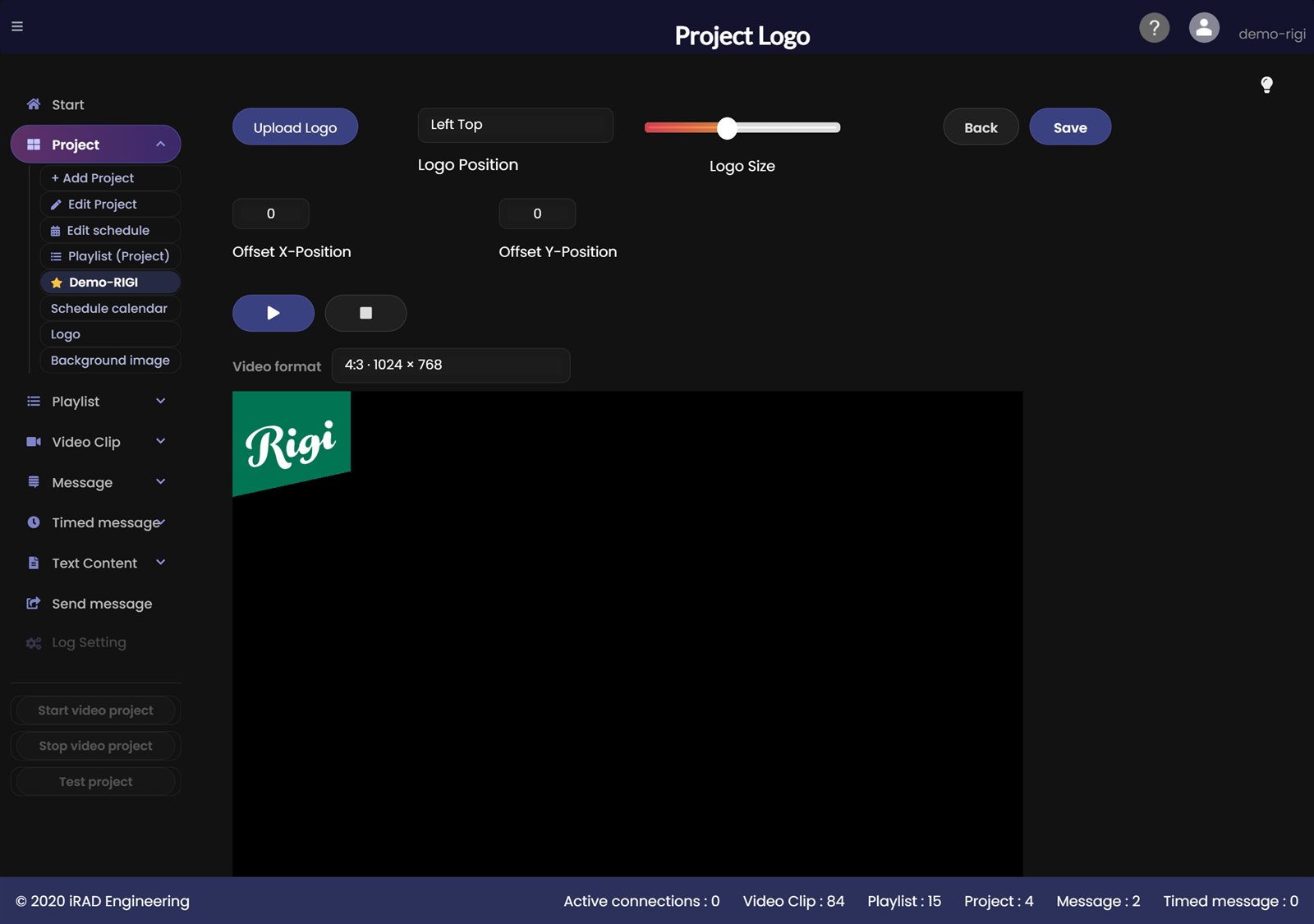
A logo overlay shows your own logo on top of the video, for example in a corner. Each project has its own logo. Open the page via Edit Project with Edit Logo. You can also reach it directly via Logo in the side menu under Project.
Upload Logo – choose the image file of your logo.
Logo position – Left Top, Left Bottom, Right Top or Right Bottom.
Logo size – adjust the size of the logo with the slider.
Save saves the logo, Back returns without saving.
Offset X-Position – fine adjustment of the horizontal position.
Offset Y-Position – fine adjustment of the vertical position.
Preview: ▶ starts the preview, ■ stops it.
Video format – choose the format of the preview, for example 4:3 · 1024 × 768. The logo appears in the preview to match that format.
TipYou can also drag the logo directly in the preview with your mouse to position it. Use Remove Logo in Edit Project to remove the logo again.
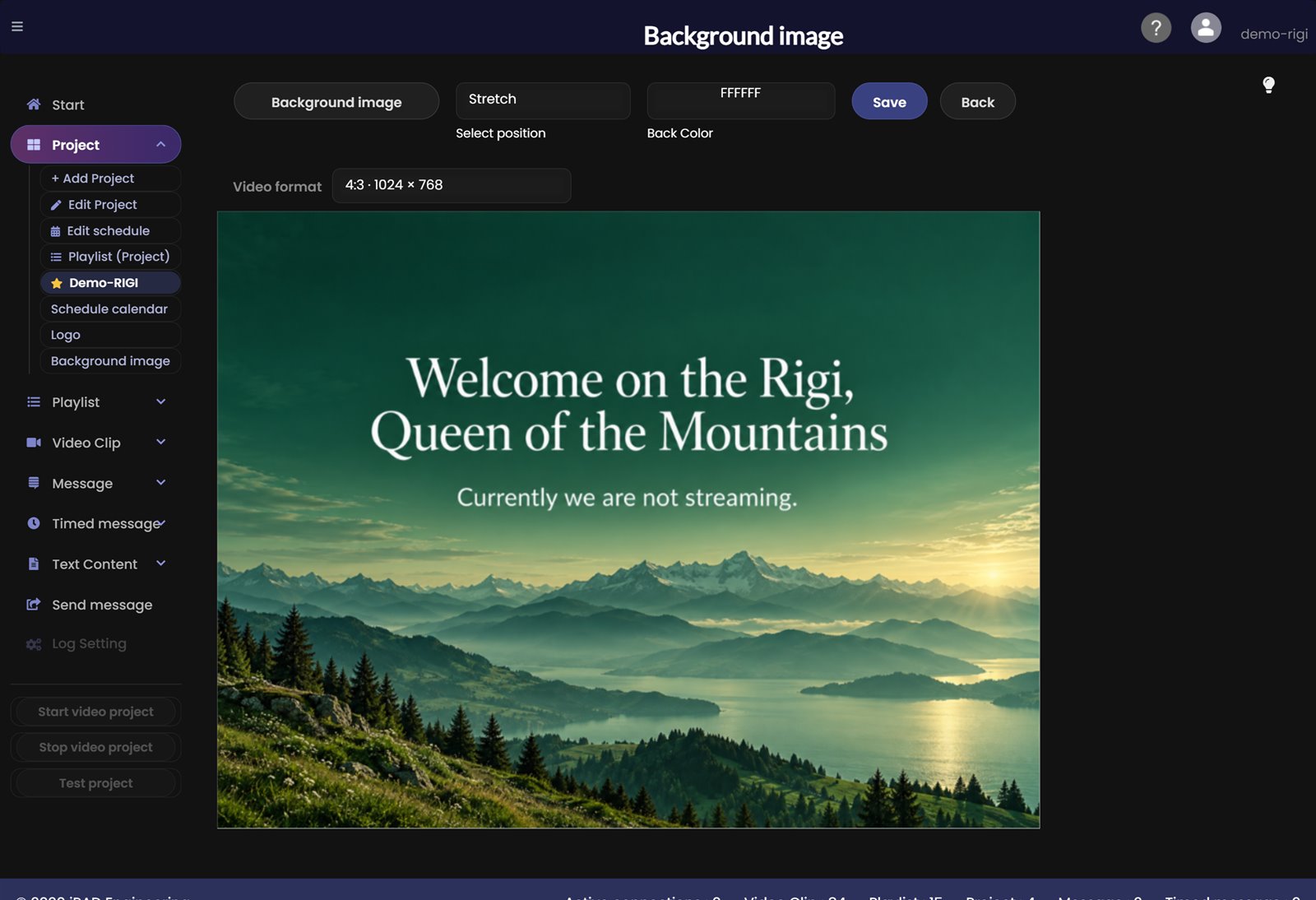
You can give each project its own background image. Open the page via Edit Project with Add Background Image. You can also reach it directly via Background image in the side menu under Project.
If no background image is assigned to a project and nothing is currently running, the player shows a default screen with the logo and a note that nothing is streaming at the moment, instead of a black screen.
Background image – choose the image file.
Select position – Center (the image appears in the middle), Stretch (the image is stretched over the whole area) or Fill (the image fills the whole area proportionally and centred; what does not fit is cut off).
Background colour – the colour behind the image, visible where the image does not cover the area.
Save saves the background image, Back returns without saving.
Video format – choose the format of the preview, for example 4:3 · 1024 × 768, or a format for your iFrame. The preview shows immediately how the image looks in that format. You do not need a start button.
TipUse Remove Background image in Edit Project to remove the image again.
Works like the project history. Here you follow the history of the connected clients (IP address). Click a row to open the history of that client in a dialog.
Clicking a row in the connection history opens the Connection history dialog. It shows the last 100 entries of exactly this client (IP address), newest first. This shows when a screen connected and when it was disconnected.
Project title – the project the client connected to.
Client name – the IP address of the client.
Started date/time – when the connection was made.
Status – whether the client was connected or disconnected.
Close – closes the dialog.
TipIf a screen shows nothing any more, open the history of its client: the last row tells you whether it disconnected and when.
Clear History (last tab) empties the project, playlist and connection history. A dialog asks for confirmation first. OK deletes, Cancel keeps everything as it is.
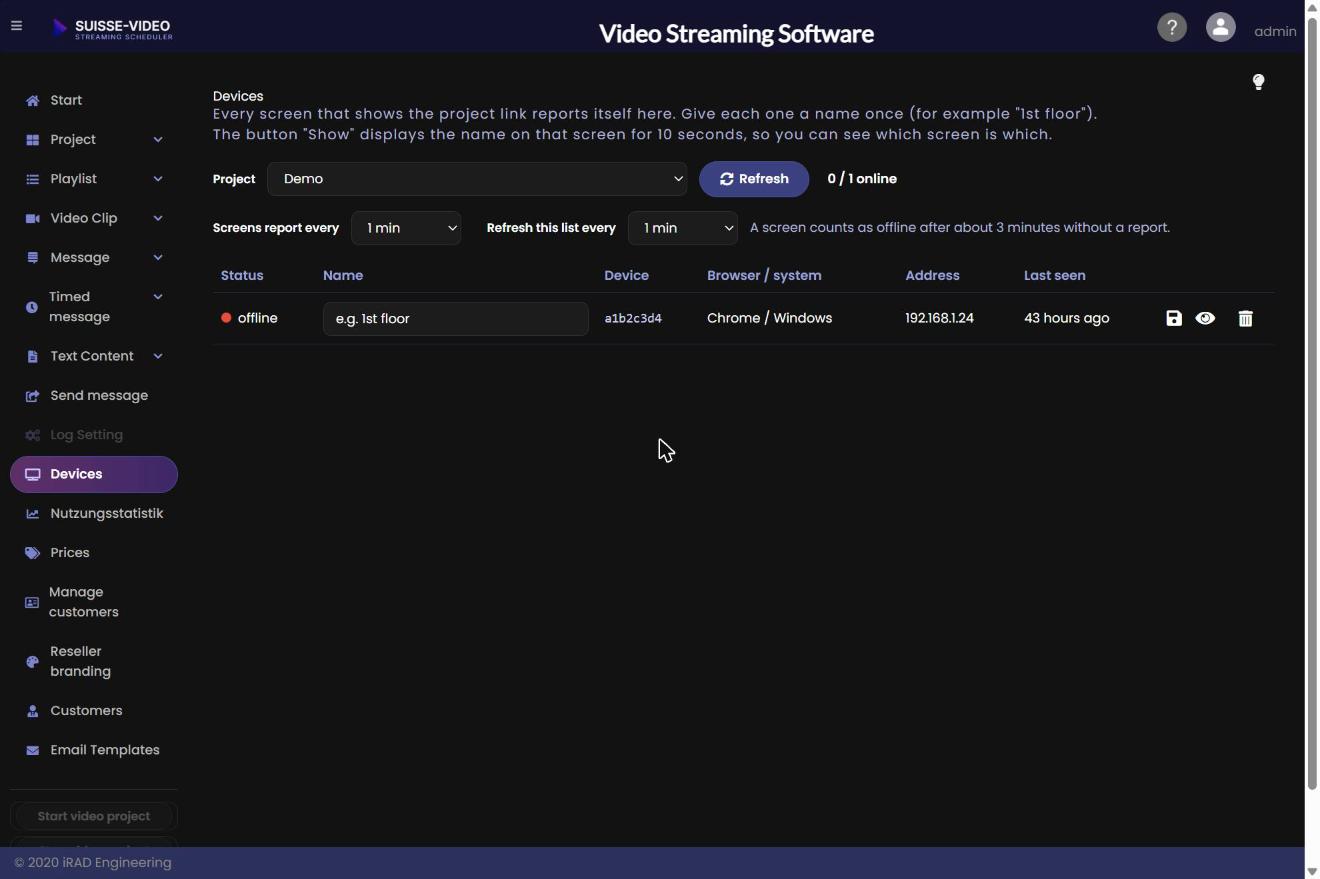
Every screen that shows the project link reports to the Devices page. This shows you which screens are running. Open the project link on the screen; it appears in the list within a minute.
Project – choose the project whose screens you want to see.
Refresh – reloads the list immediately. Next to the button you see how many devices are online (for example “2 / 3 online”).
Screens report every … min. – how often a screen reports. A screen counts as offline after about this time without a report.
Refresh this list every … – how often the page updates itself (15 seconds to 5 minutes).
Table: Status (green = online, red = offline), Name, Device (the device number), Browser / system, Address and Last seen.
Name – give each screen a name once, for example “1st floor”. Save it with the Enter key or the Save icon.
Show – shows the name on that screen for 10 seconds. This is how you tell which screen is which.
Delete – removes the device from the list. It reappears as soon as the screen reports again.
TipIf you have several screens on the same project, name them right away. Then you find the right screen when something goes wrong.
Your account has an expiry date. Shortly before it, the start screen shows a notice with the time left. Direct customers of SUISSE-VIDEO also get an email reminder in their language. A reseller’s end customers are reminded by the reseller (automatically, if the reseller has switched that on).
After expiry the start screen shows a red notice that the account has expired. Starting and testing a project is then blocked and a message appears.
An expired reseller account only shows a notice page with the option to log out.
To extend the licence, contact your provider: your reseller or, for direct customers, support.
NoteYour content (video clips, playlists, cards) is kept. After the extension everything continues as before.