← Back to the overview article
How to schedule lunch and dinner menus on your restaurant screen
Display your lunch menu during lunch service and your dinner menu in the evening. Set the schedule to match your kitchen hours, without changing the display by hand each day.
What this guide helps you set up
By the end, you will have a lunch menu and a dinner menu for each day of the week, a display schedule and a checklist for testing your screen. Create the menus in “Text content” and schedule them in your SUISSE-VIDEO project. Each menu replaces the video during its scheduled period; the video programme resumes afterwards. You still update dishes and prices yourself.
A schedule that fits your restaurant
In this fictional example, Restaurant Pizzeria Oliva shows its lunch and dinner menus during the relevant service hours, with restaurant videos in between. Adapt the timetable below to your own opening and kitchen hours.
| Time | Display |
|---|---|
| Before 11:30 | Video programme |
| 11:30–14:00 | Lunch menu |
| 14:00–18:00 | Video programme |
| 18:00–21:30 | Dinner menu |
| After 21:30 | Video programme |
Example timetable for a day when the restaurant is open. Use your own service hours and leave closed days out of the menu schedule.
Start with 14 editable menus
The weekly pack includes a lunch menu and a dinner menu for each day from Monday to Sunday, with sample dishes, drinks and prices in CHF. You can edit the files in a word processor that supports RTF. All dishes and prices are examples.
Restaurant Pizzeria Oliva
Using the templates
Open the RTF template in a word processor, edit the dishes and prices, then copy the text into the SUISSE-VIDEO “Text content” editor. Check the formatting after pasting. These downloads are editable text templates; this guide does not establish that SUISSE-VIDEO supports importing RTF files directly.
1. Design your menus
Give each menu a clear name, such as “Monday – lunch” or “Monday – dinner”. Replace the restaurant name, dishes and prices with your own. Set the font and colours, use tables where helpful and add a background image if needed. Keep the background simple: decorative borders or busy images behind prices can make them harder to read.
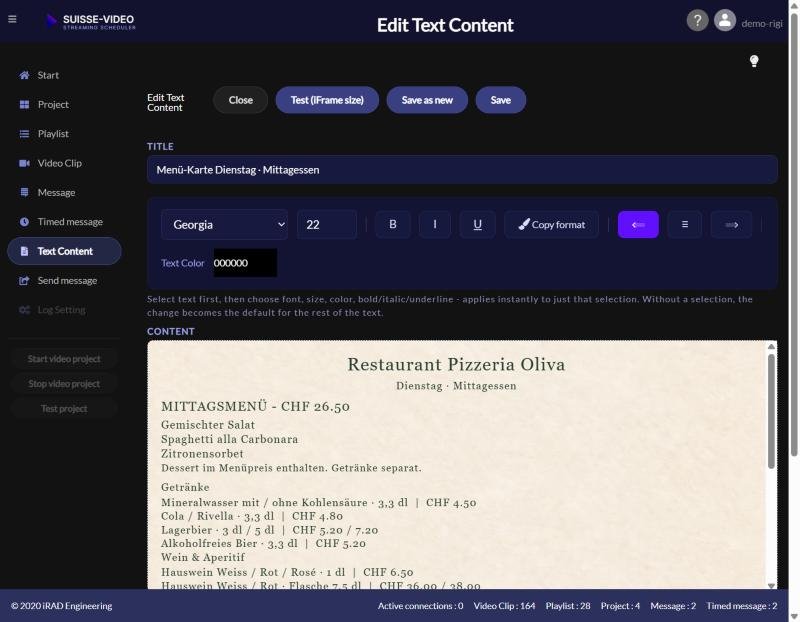
2. Schedule the menus in the project
Add the menus to your project and choose the days and times when each should appear. If several days share the same lunch and dinner hours, enter those times once and apply them to the relevant menus. Then check closed days and any days with different kitchen hours individually.
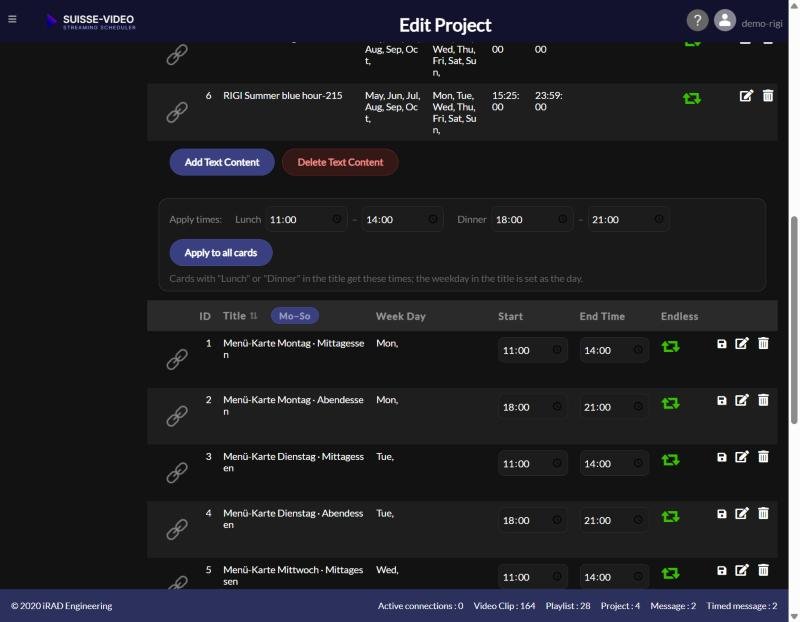
3. Open the project on the playback device
Open the project URL in the browser on your screen or on the device connected to it. You need an internet connection, an up-to-date supported browser and a SUISSE-VIDEO account. If the screen does not have a suitable browser, connect a separate playback device. Check that the text is readable from where guests will stand or sit. A preview on your computer is not enough. Long menus scroll automatically; a shorter daily menu is usually easier to scan.
Test the switch before guests see it
Create a separate test project and schedule a menu to appear for a short period starting soon. Keep the schedule of any screen already in use unchanged. Watch the menu appear and the video return, then set your regular service hours once the test succeeds.
- Open the project URL on the playback device and let the video run.
- At the start of the test slot, check that the right menu replaces the video.
- Check dishes, prices, weekday and readability.
- At the end, check that the scheduled video programme returns.
- After a successful test, apply your normal kitchen hours.
Pre-launch checklist
The right menu on the wrong day
Clear names help. Check the assignment in the project, not only the heading inside the menu.
Too much content on one screen
Focus on what is available at that time. Shorten or remove the drinks lists in the templates if this makes your daily menu easier to read.
The video does not play
Check the internet connection, browser and possible content blockers. Playback also depends on YouTube or Vimeo. A schedule alone does not guarantee uninterrupted operation.
Frequently asked questions
Can each weekday have a different menu?
Yes. Prepare separate menus and assign them to the required weekdays in the project.
Do dishes and prices update automatically?
The switch between scheduled menus is automatic. You update the menu content yourself.
Does the restaurant demo show the menu changeover?
The public restaurant demo shows a video embedded in an example website. Test scheduled menu switching in your own project. Restaurant demo →
Does this replace a till or ordering system?
No. It displays your menus; it is not an ordering or point-of-sale solution.
Try your own daily menu.
Use the templates as a starting point and test the design and schedule with your own screen. SUISSE-VIDEO offers a free 30-day trial.
The described features are based on SUISSE-VIDEO’s public product information and original screenshots. Restaurant Pizzeria Oliva, dishes and menu prices are fictional examples.