← Back to the overview article
How to plan screen content between lunch and dinner
Start with a short sequence of kitchen footage and a timely announcement, then show the dinner menu when service begins. Choose content that is useful to guests at each point in the day.
Example afternoon schedule
| Time | Content | Purpose |
|---|---|---|
| 14:00–18:00 | Restaurant video · Video with a timely announcement | Show your kitchen and dishes · Explain a specific offer |
| 18:00–21:30 | Dinner menu | Show what guests can order now |
1. Identify what guests need between services
Note when the kitchen is closed and who will see the screen during that period. A guest having a drink may want to know when dinner service starts. Someone at the entrance may be more interested in a quick look at your food. Choose content for those needs and check it from the relevant viewing position.
2. Choose three pieces of content to start with
Choose a short kitchen or food video, a timely announcement and one more relevant restaurant video. Try clips of about 20 to 40 seconds as a starting point. This is a suggested length to test, not a software requirement. Each clip should make sense even if a guest starts watching halfway through.
3. Make announcements specific
Instead of a vague message such as “Special event coming soon”, state the event, date and how to book. The example below is fictional: use its structure, but replace every detail with your own information. Display the key details in the video and check that guests can read them from their usual viewing distance.
Pasta night · Friday, 16 October 2026
From 18:00 · Ask a member of staff to book a table
4. Check media rights and consent
Use your own footage or media you have permission to use, including any music. If staff or guests can be identified, check that they have agreed to appear before using the footage. A kitchen video can focus on hands, ingredients and the finished dish, without featuring customers or testimonials.
5. Schedule it in the project
Make your videos available through a video source supported by SUISSE-VIDEO, then add them to your project. Schedule them between lunch and dinner service. Check the settings available in your project before relying on automatic repeats or audio controls. Use the menu scheduling guide to set when your lunch and dinner menus should appear.
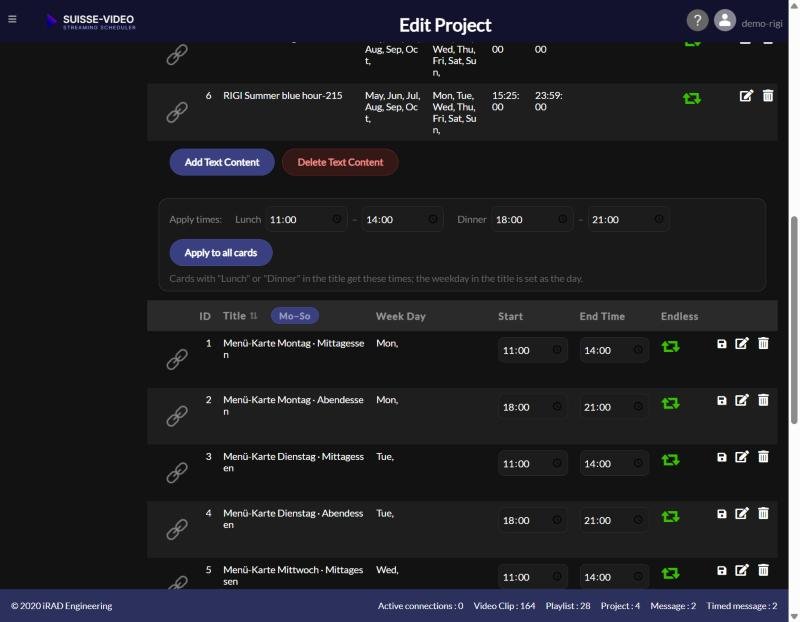
Switch lunch and dinner menus automatically →
6. Test playback and the switch to the dinner menu
Open a separate test project on the device connected to your screen. Check the first video, make sure the messages are understandable without sound and watch the dinner menu appear at its scheduled time. Also check the internet connection and playback from the video source. Leave the schedule of any screen already in use unchanged during this test.
7. Review the content once a week
For each promotion or event announcement, name the person responsible for updating it and note when it should stop appearing. Before each week starts, check offers, kitchen hours and booking details. Showing a date in the video does not remove it from the schedule automatically. Remove outdated announcements yourself or update their scheduled times.
How to tell whether the content is useful
Notice whether guests ask about the featured dish or understand an announcement without needing staff to explain it. Record any recurring confusion and use it to improve the content. These observations can help assess usefulness, but they do not prove that the screen content has increased sales.
Pre-launch checklist
Related: Switch lunch and dinner menus automatically · Make menus readable